New harmon.ie
 Rebrand New harmon.ie
If your organization requires it, you may rebrand New harmon.ie to use your company’s logo, icons, links and labels. This is done by creating an Outlook add-in manifest file and hosting the required branding files on your CDN.
Before you begin
Prepare the following:
- Download and extract harmon.ie’s sample manifest file.
- Generate a unique add-in ID. Use any online UUID generator or run
uuidgenfrom Command Prompt or PowerShell. - A public HTTPS CDN for hosting branding files.
- Brand icons in the required sizes.
Step 1: Create the branding resources
A. Create resources.zip
The app downloads a file named resources.zip from the root of your branding CDN at startup, and uses it to replace display texts and URLs in the app.
Create a ZIP file named resources.zip that contains a single file named branding.json. Place branding.json at the root of the ZIP file, not inside a subfolder.
Use branding.json to override display texts and URLs in the app. All fields are optional, if they are not defined, the harmon.ie default values are used.
| Field | Default value | Description |
|---|---|---|
companyName |
harmon.ie |
Replaces visible occurrences of company name |
productName |
New harmon.ie |
Replaces visible occurrences of product name |
whatsNewUrl |
https://harmon.ie/documentation/sharepoint/new/whatsnew |
Link to a What’s new guide |
supportUrl |
https://harmon.ie/support/ |
Link to Get support |
trainingUrl |
https://harmon.ie/training/ |
Link to Training videos |
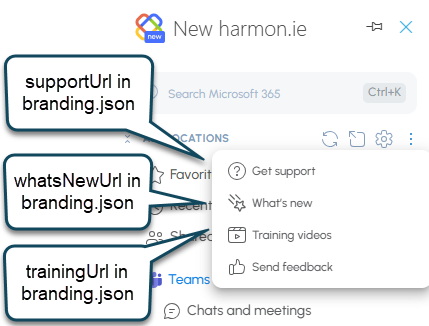
Example branding.json:
{
    "companyName": "harmon.ie",
    "productName": "New harmon.ie",
    "whatsNewUrl": "https://harmon.ie/documentation/sharepoint/new/whatsnew",
    "supportUrl": "https://harmon.ie/support/",
    "trainingUrl": "https://harmon.ie/training/"
}
Email addresses such as support@harmon.ie are not changed by these overrides.
B. Prepare branding images
Make sure you have all required branding images according to this table:
| Image name | Image size in pixels |
|---|---|
| icon-16.png | 16*16 |
| icon-32.png | 32*32 |
| icon-64.png | 64*64 |
| icon-80.png | 80*80 |
| icon-128.png | 128*128 |
Step 2: Host the branding files on your CDN
Host the files you prepared in step 1 under the root of your branding CDN:
https://company-domain/assets/icon-16.pnghttps://company-domain/assets/icon-32.pnghttps://company-domain/assets/icon-64.pnghttps://company-domain/assets/icon-80.pnghttps://company-domain/assets/icon-128.pnghttps://company-domain/resources.zip
- Replace “https://company-domain” with your organization’s CDN URL.
- Make sure all files are publicly accessible over HTTPS.
Step 3: Update the manifest file
Update the downloaded manifest.outlook.branding.xml file as follows:
A. Replace the app ID
Each branded deployment must use its own unique add-in ID so it can coexist with other installations without conflict.
Replace the existing <Id> value with your created UUID.
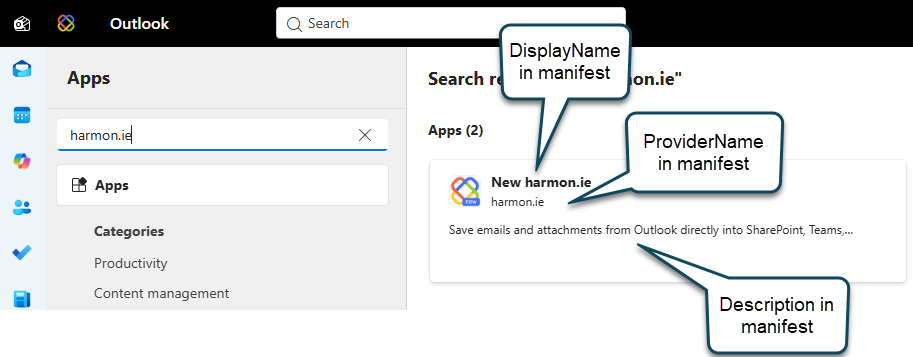
B. Update the display texts
Replace the text in the following fields with the correct branded values.
| Field | What to enter |
|---|---|
ProviderName |
Your company name |
DisplayName |
The name you want to use for the add-in in Outlook |
Description |
App description. Shown when viewing the app in Apps. |
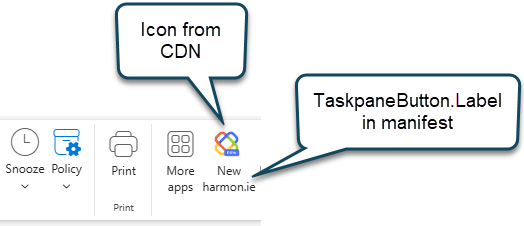
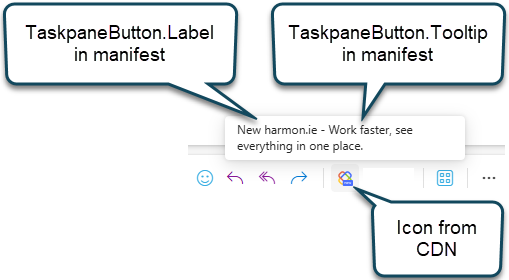
TaskpaneButton.Label |
The label you want to show on the ribbon button |
TaskpaneButton.Tooltip |
App tooltip. Displayed when hovering over the app icon in the message toolbar. |
Example:
<ProviderName>harmon.ie</ProviderName>
<DisplayName DefaultValue="New harmon.ie"/>
<bt:String id="TaskpaneButton.Label" DefaultValue="New harmon.ie"/>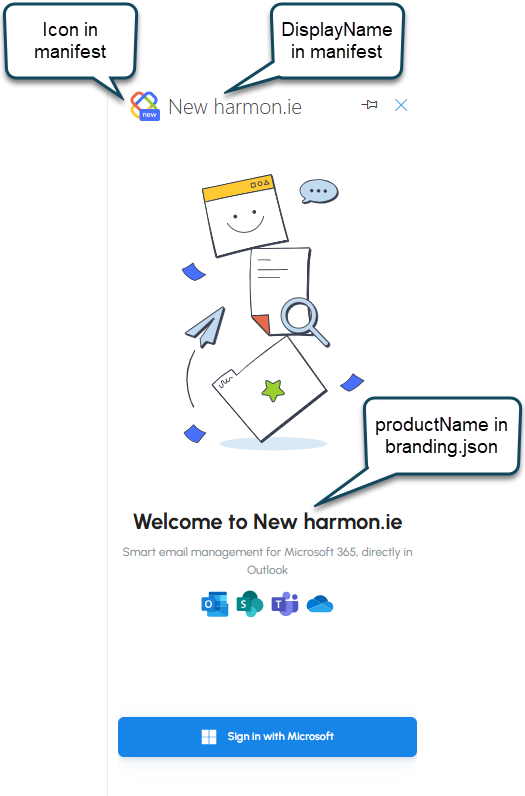
C: Update resource URLs
Replace every https://company-domain placeholder in the manifest with the HTTPS root URL of your branding CDN.
Update these locations in the manifest:
- Image URLs – update
IconUrl,HighResolutionIconUrl, and allbt:Imageentries to point to your branded icon files. - Taskpane URL – update the
brandingUrlquery parameter in<bt:Url id="Taskpane.Url">so it points to your CDN root URL. - AppDomains – add or update your CDN domain in the
<AppDomains>section so Outlook trusts content loaded from it.
Step 4: Enable CORS on your CDN
The taskpane is hosted on https://app.harmon.ie and loads branding files from your CDN by using browser requests (fetch()).
Configure your CDN to return the following HTTP response headers for all branding files under /assets/ and for resources.zip:
Access-Control-Allow-Origin: https://app.harmon.ie
Access-Control-Allow-Methods: GET, HEADValidate the branded deployment
Before distributing the branded manifest, verify the following:
- The manifest contains a new unique add-in ID.
- The display values have been updated.
- All icon URLs use HTTPS and return the correct files.
- The
brandingUrlparameter points to the correct CDN root. - The branding CDN domain is listed in
<AppDomains>. resources.zipis publicly accessible.resources.zipcontains a validbranding.jsonfile.- CORS is enabled for
https://app.harmon.ie.