New harmon.ie
 Get to Know New harmon.ie
New harmon.ie allows you to interact with all your SharePoint, Teams, and OneDrive locations from a single interface within Outlook, or a desktop app. This guide introduces the interface and explains how to use its features effectively.
New harmon.ie offers two main views:
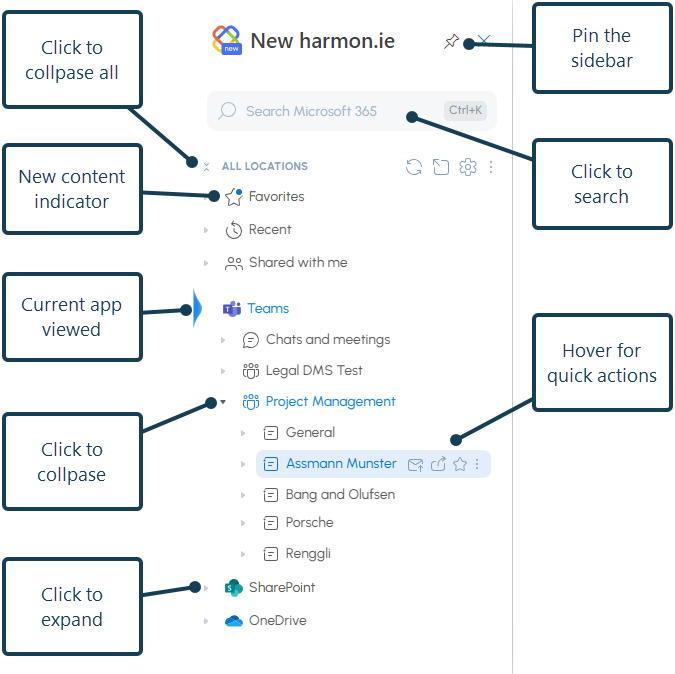
- HOME: Shows a tree view of your SharePoint, Teams, and OneDrive locations, favorites, recent, and shared with me.
- CONTENT: Displays a list view of a group (such as Recent or Shared with me) or a single Microsoft 365 location, including all sub-locations, files, and metadata.
You can also open your Settings from the toolbar.
Automate your email saving (Beta)
New harmon.ie can save your emails to Microsoft 365 automatically. Opt a conversation into auto-save, or let harmon.ie suggest a rule when it spots a pattern in what you save. Matching emails are then filed for you, in the right location with the right metadata, and you can track everything from the Automation Dashboard.
Comparison of the harmon.ie views
| Feature | Home view | Content view |
|---|---|---|
| Purpose | Browse and manage all SharePoint, Teams, and OneDrive locations in one tree view | Explore a specific location in detail, including files and metadata |
| Layout | Tree view with expandable/collapsible locations | Flat list of sub-locations, files, and metadata within one selected location |
| Navigation | Quick jump between multiple Microsoft 365 locations | Focused navigation within a single location, with a navigation path and Back/Forward |
| Metadata Display | Limited metadata (hover-based) | Full file metadata is visible |
| Actions | Hover over locations or files for actions like share, favorite, save email | Full action menu available for each item |
| Search | Search across all Microsoft 365 files | Search within the current location only |
| Sort, filter, and views | Not available | Sort by column, filter by type, and select a SharePoint or Email view |
| Best For | High-level browsing and switching between locations | Detailed work within a specific SharePoint, Teams, or OneDrive folder |
Each view lets you: save emails and attachments, upload files to SharePoint, Teams, or OneDrive; view and manage files; share locations and files; search; and more.
How to switch between the Home and Content harmon.ie views
Double-click a location in the Home view to open it in the Content view.
Click the Home icon ( ) in the Content view to open the Home view.
Home view – Groups
harmon.ie displays all your Microsoft 365 locations in a single tree view that includes:
- Favorites – locations and files that you use frequently can be saved as favorites for easy navigation.
- Recent – recent locations you uploaded files to using harmon.ie and recent files you worked on with Microsoft 365 apps.
- Shared with me – files and folders that your colleagues shared with you. You can include email attachments sent to you in this view.
- Teams – Teams locations and recent files, as well as files shared in Chats and meetings.
- SharePoint – your SharePoint locations and recent files. You may include SharePoint hubs and team sites here.
- OneDrive – all locations and recent files you saved to your OneDrive.
Content view
Double-click a SharePoint, Teams, or OneDrive location or a harmon.ie group (such as Recent, Shared with me) to view its contents in a list view. The Content view includes all the sub-locations and all files.
To help you move around, the Content view includes a navigation path showing the full path to your current location, and Back and Forward buttons to move through recently visited locations.
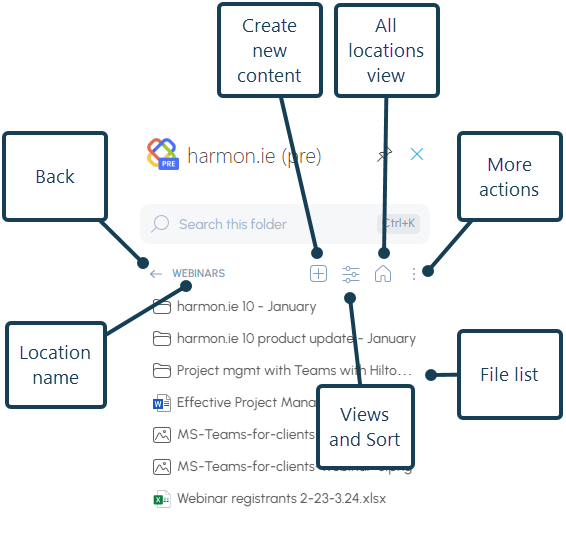
Both views let you save emails and attachments, upload files, share, favorite, rename, delete, edit details, download, copy, cut, paste, and preview files.
Resize the add-in
You can make the harmon.ie add-in wider for a roomier view that shows more file metadata:
- Drag the divider between harmon.ie and your inbox to set the width you want.
- Click the expand (
 ) / collapse () icons to switch between a wide and a narrow view.
 ) / collapse (
 ) icons to switch between a wide and a narrow view.
Pop out harmon.ie
When the harmon.ie Desktop app is not installed or you are not signed in, you can pop harmon.ie out into a separate, wider window to browse Microsoft 365 with all file metadata in one expanded view. You can also drag and drop emails and attachments into the popped-out window. Pop-out is also available on Mac.
- Open New harmon.ie in Outlook for Windows (new) or Outlook on the Web.
- Click the pop-out icon (
 ) in the Home view.
 ) in the Home view.
Changes made in one harmon.ie window (Outlook sidebar or pop-out) don’t automatically sync to the other.
To sync changes between harmon.ie windows, click the Refresh all icon ( ).
).
Shortcuts in New harmon.ie:
You can use the following shortcuts to perform common tasks in the sidebar:
| Windows shortcut | Mac shortcut | Command | How to use |
|---|---|---|---|
| Ctrl+L | Ctrl+L | Copy link | Click one or more locations and/or files to select them, then click Ctrl+L to copy the links to the selected items to the clipboard |
| Ctrl+E | Email with link | Click a Microsoft 365 location or file to select it, then click Ctrl+E to create a new email message with a link to this item. | |
| Ctrl+K | Ctrl+K | Search this location | Click Ctrl+K to start searching in the current location or in Home view. |
| Alt+A | Add as attachment | Click Alt+A when you are writing an email to add the selected file(s) to your email message as attachments. | |
| Ctrl+T | Ctrl+T | Share to Teams | Click Ctrl+T to share the selected file(s) in Teams. (This shortcut doesn’t work in Outlook on the Web.) |
| Ctrl+C | Cmd+C | Copy | Select one or more files, then click Ctrl+C to copy them. Paste them in another Microsoft 365 location. |
| Ctrl+X | Cmd+X | Cut | Select one or more files, then click Ctrl+X to cut them. Pasting them in another Microsoft 365 location moves them there. |
| Ctrl+V | Cmd+V | Paste | Select a destination library, folder, or Teams channel, then click Ctrl+V to paste the copied or cut files into it. |
| Delete | Delete one or more folders and files | Click Delete to delete the selected file(s) and/or location(s). |
How to send feedback to harmon.ie?
- Open harmon.ie’s Home view.
- Click the More actions icon next to All Locations (), then click Send feedback ().
- Select an icon that best matches how you feel about New harmon.ie.
- Optionally, type in your comments and let us know if we can contact you about your feedback – what you like, any feature you are missing, or an error you encountered.
- Click Send feedback.
 ), then click Send feedback (
 ).
).We love getting feedback from our users!