


 French
Get started with New harmon.ie
New harmon.ie connects Outlook with Microsoft 365, allowing you to save emails and attachments directly from Outlook into SharePoint, Teams, or OneDrive, and to find, share, and organize your work across Microsoft 365.
New harmon.ie is available in two editions:
- harmon.ie for Outlook: An Outlook add-in that works in Outlook for Windows (new Outlook), Outlook (classic), Outlook for Mac, and Outlook on the Web, including modern browsers such as Edge and Safari.
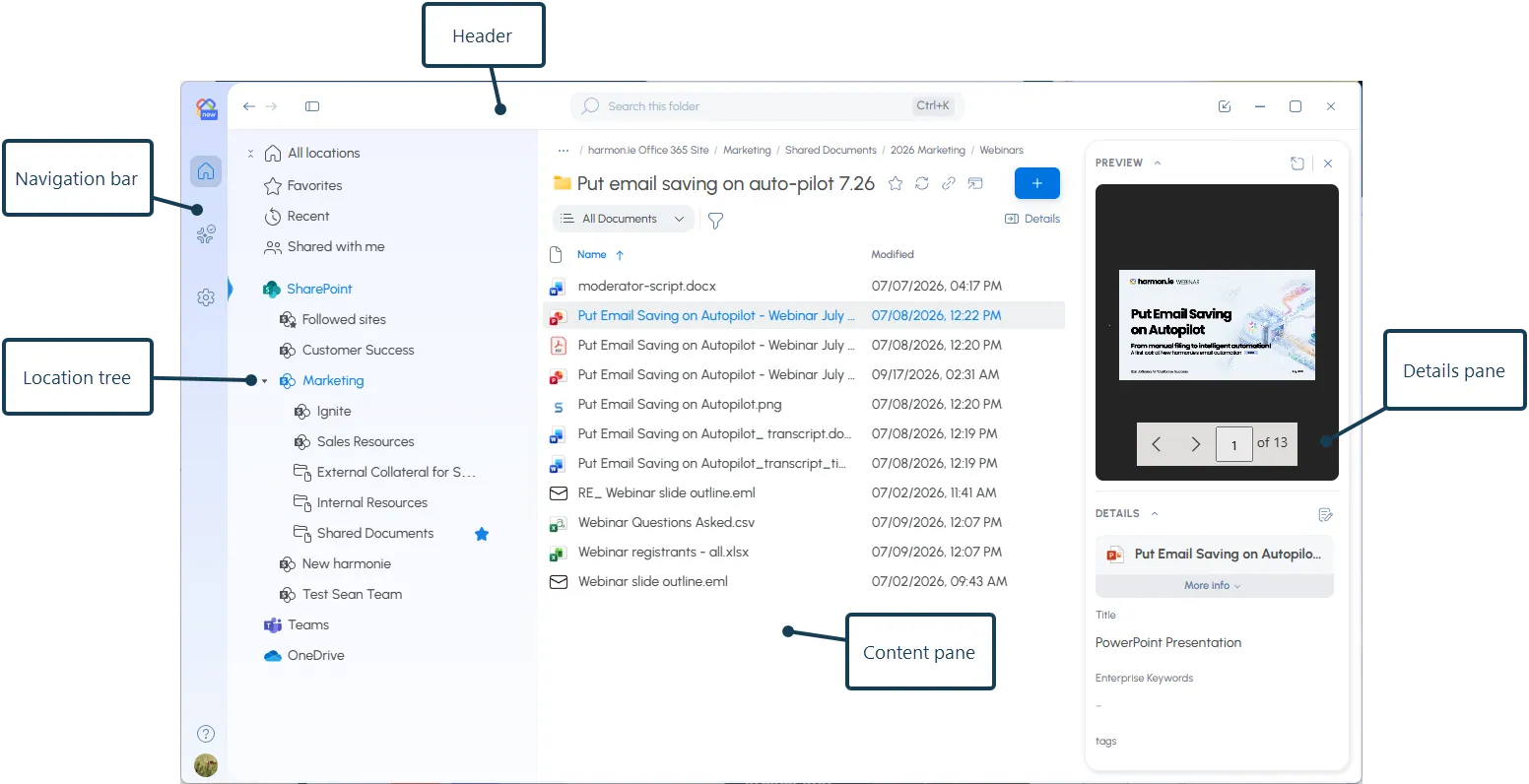
- harmon.ie Desktop app: A standalone application that provides the harmon.ie interface in a resizable window. Available for Windows.
Learn more about New harmon.ie’s features and use cases on the New harmon.ie product page, and see what’s coming next on the New harmon.ie roadmap.

What can you do with New harmon.ie?
You can use harmon.ie to perform these tasks:
- SAVE:
- Save email messages and attachments to SharePoint, Teams, or OneDrive.
- Save emails when you send them.
- Save an Outlook folder, its subfolders, and all their emails in one action.
- Upload files to SharePoint, Teams, or OneDrive.
- AUTOMATE:
- Set rules to automatically save emails to Microsoft 365, and let them run in the background with the harmon.ie Desktop app.
- SHARE:
- Share Microsoft 365 locations and files with your colleagues by sharing a link in email or attaching a file to email.
- Share locations and files in Teams chats, groups, and channels.
- SEARCH:
- Quickly find files across Microsoft 365, using advanced search options.
- Find files in a specific Microsoft 365 location or a harmon.ie group (such as Recent, or Shared with me).
- Ask Copilot a question and get the files that match its meaning.
- MANAGE:
- Manage your Microsoft 365 files – open in web or desktop apps, create, rename and delete files and folders.
- Manage metadata.
- Summarize a document or email with Copilot.
This article is intended for new users. If you are familiar with harmon.ie Classic, read Get started with New harmon.ie (For harmon.ie Classic Users) instead.
To get New harmon.ie up and running:
1. Get access to New harmon.ie:
New harmon.ie is available as an Outlook add-in and a desktop app (Windows).
- Evaluating harmon.ie? Start a free trial to get the Outlook add-in (from Microsoft Marketplace) and the desktop app.
- Already licensed for your organization? harmon.ie may already be deployed by your administrator. If you don’t see the add-in in Outlook or the desktop app isn’t available, contact your administrator.
2. Open New harmon.ie
Open harmon.ie in the environment where you work with Outlook or launch the harmon.ie Desktop app.
3. Connect New harmon.ie to Microsoft 365
The first time you open New harmon.ie, you’ll have to perform these steps:
- Click Sign in with Microsoft and provide your Microsoft credentials.
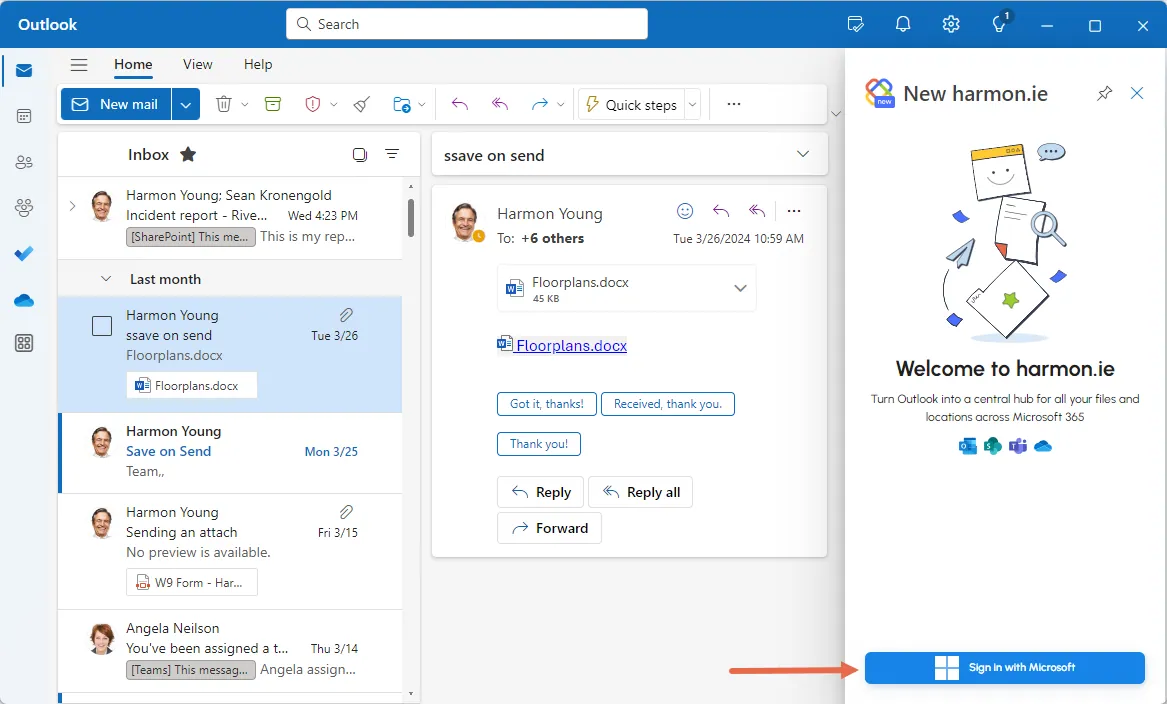
- If an administrator hasn’t granted consent for you, you are prompted to grant harmon.ie consent to connect to your Microsoft 365 locations. Click Accept, or contact your administrator.
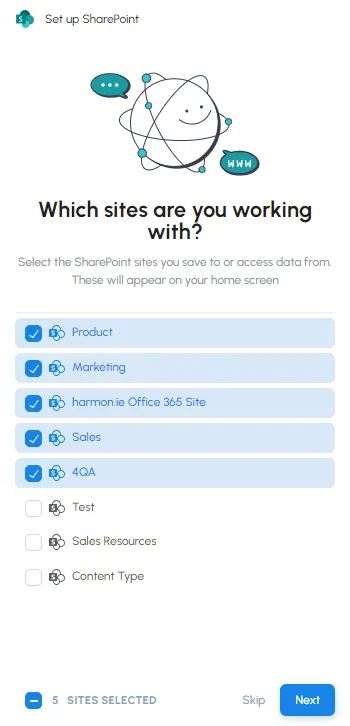
- harmon.ie displays a list of SharePoint sites and SharePoint hub sites, with your frequently used sites pre-selected. Sites your administrator configured for all users are also pre-selected and can’t be unselected. You can add or remove other sites, then click Next.
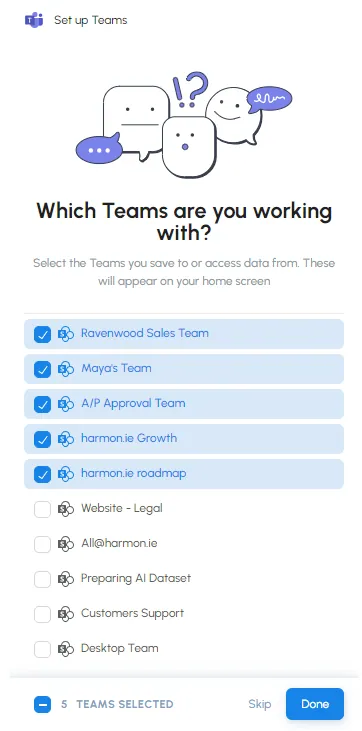
- harmon.ie displays a list of teams you frequently work with. Add or remove teams from the list and then click Done.
4. Get to know harmon.ie
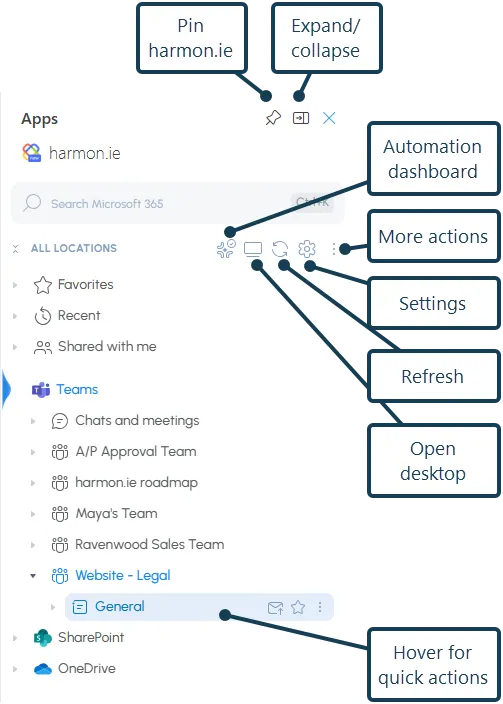
Now that harmon.ie is connected to Microsoft 365, it shows all your Microsoft 365 locations in a single tree, organized in these groups:
- Favorites – locations and files that you use frequently can be saved as favorites for easy navigation.
- Recent – recent locations you uploaded files to using harmon.ie and recent files you worked on with Microsoft 365 apps.
- Shared with me – files and folders that your colleagues shared with you. You can include email attachments sent to you in this view.
- Teams – Teams locations and recent files, as well as files shared in Chats and meetings.
- SharePoint – your SharePoint locations and recent files. You may include SharePoint hubs and team sites here.
- OneDrive – all locations and recent files you saved to your OneDrive.
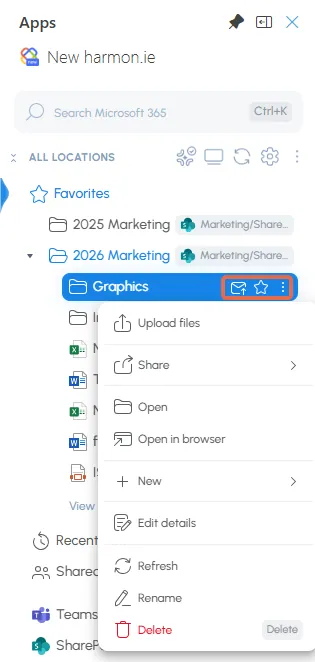
To act on a location or file, hover over it and click one of the quick actions, or click More actions ( ) or right-click it to see all actions. Common actions also have keyboard shortcuts.
To get familiar with the app you use, see: