New harmon.ie
 Upload Files to SharePoint, Teams, or OneDrive
New harmon.ie allows you to quickly upload documents from your computer to SharePoint, Teams, or OneDrive, using harmon.ie’s Upload file button, or with drag and drop. You can also upload email messages and attachments to Microsoft 365 with harmon.ie.
How to upload files to SharePoint, Teams, or OneDrive, with the Upload file button?
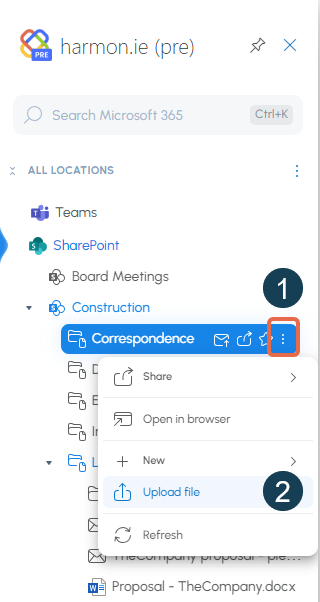
- In New harmon.ie, locate the SharePoint, Teams, or OneDrive location to which you want to upload files.
- Click the More actions icon (
 ) next to the location name.
Alternatively, open the location by double-clicking its name. Click More actions () at the top. - Click Upload file (
 ).
). - Select the file(s) you want to upload and click Open.
- If a file with the same name already exists in the location, you are prompted to replace the file, keep both, or skip it.
- If you or your admin have configured harmon.ie to open the property editor automatically, it opens after the file is saved. You can edit the file name and any metadata fields, then click Save.
How to upload files to SharePoint, Teams, or OneDrive using drag and drop?
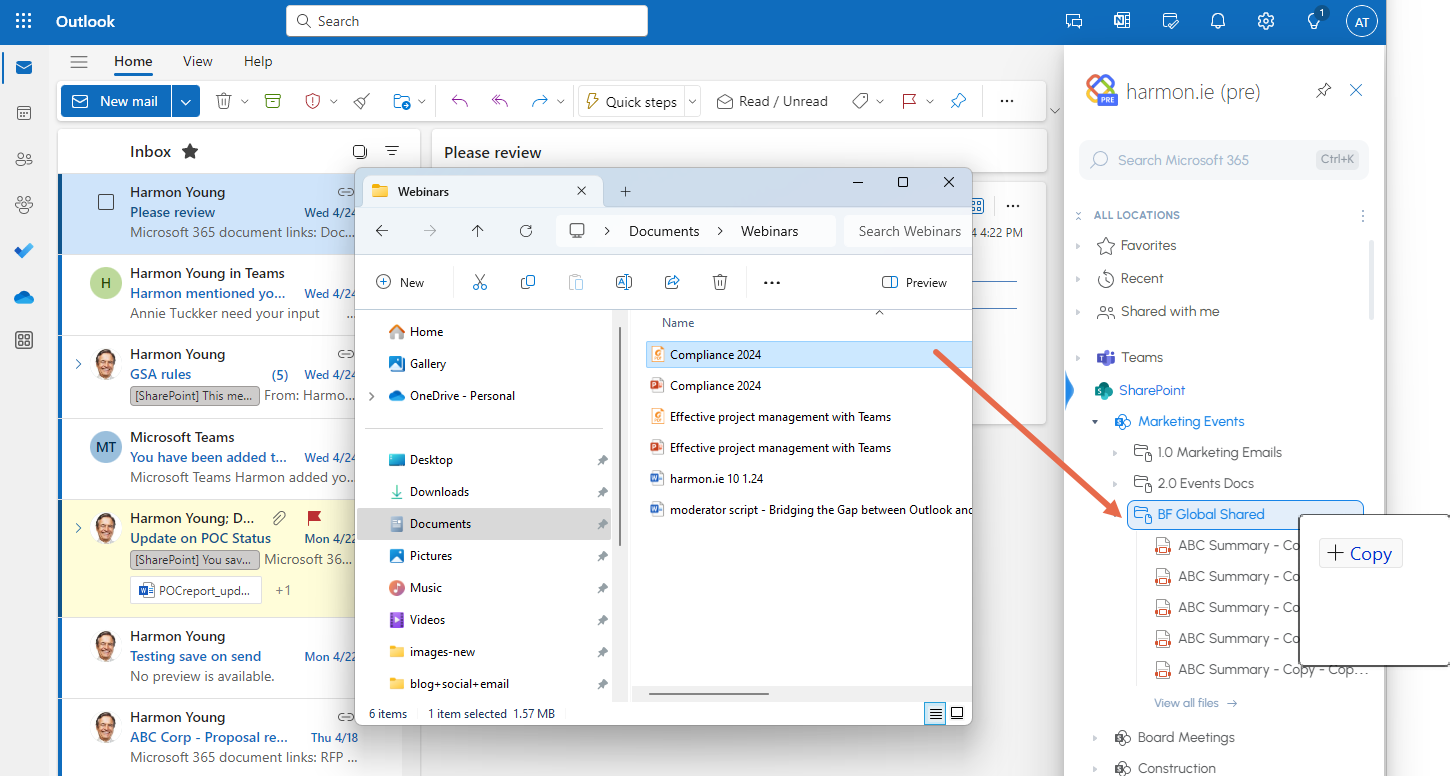
- In harmon.ie, locate the SharePoint, Teams, or OneDrive location to which you want to upload files.
- Drag and drop one or more files from the file system onto the location to which you want to upload the files.
- If a file with the same name already exists in the location, you are prompted to replace the file, keep both, or skip it.
- If you or your admin have configured harmon.ie to open the property editor automatically, it opens after the file is saved. You can edit the file name and any metadata fields, then click Save.
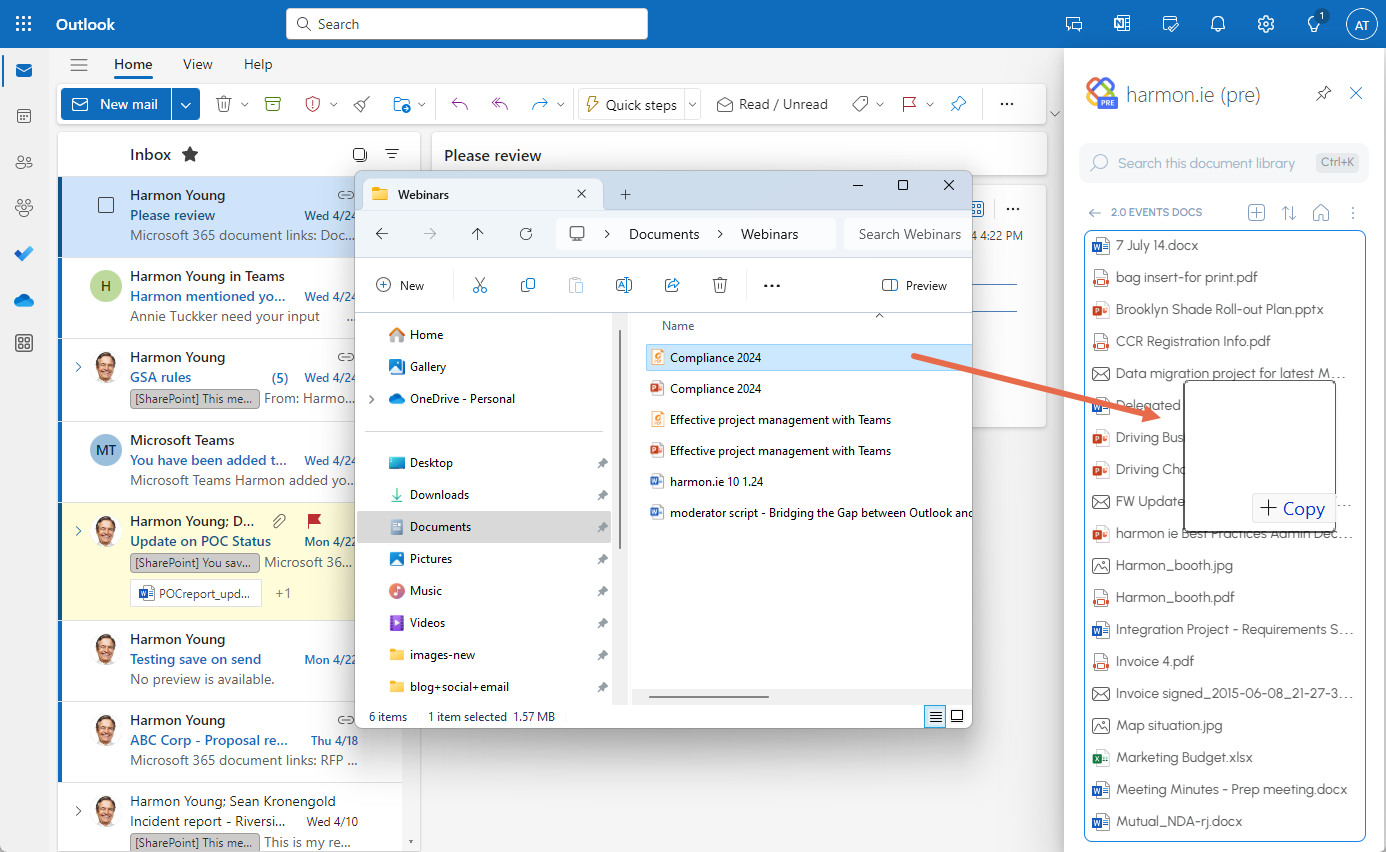
Alternatively, open the location by double-clicking its name. Drag and drop a file from the file system onto the file list in harmon.ie.
What happens if an item with the same name already exists?
When you upload, save, or copy an item to a location that already contains a file, email, or attachment with the same name, harmon.ie asks how you want to proceed with it:
- Replace item – overwrite the item already in the destination location with the one you are adding. The existing item is replaced by the new one.
- Keep both – keep the existing item and add the new one, with a version number appended to its name.
- Skip – leave the existing item unchanged and don’t add the new one.
When you are adding several items at once, select Apply to all items to use the same choice for every remaining name conflict. If you leave it unchecked, harmon.ie prompts you separately for each item that already exists in the destination.
What if the existing item can’t be replaced?
Some items in the destination can’t be overwritten: you don’t have permission to replace the item, it is checked out to another user, it requires checkout, or a retention label prevents it from being changed. harmon.ie tells you which of these applies, and offers Keep both or Skip. Select Apply to all items to resolve every remaining conflict of this kind the same way.