New harmon.ie
 Automatically Save Emails to Microsoft 365
With email automation, harmon.ie saves emails to Microsoft 365 for you, based on rules you turn on as you save. Matching emails are saved to SharePoint, Teams, or OneDrive, to the same location and with the same metadata each time.
You view and run your automations from the Automation Dashboard, which you open from the toolbar ( ). With the harmon.ie Desktop app installed and signed in, your rules run in the background on a schedule, so emails are saved without you doing anything.
) appears on the toolbar unless your administrator turned off email automation. If you don’t see it, contact your administrator.
In this guide, you’ll learn how to:
Create automation rules
Create an automation rule, and harmon.ie saves matching emails to a predefined location, on every automation run. You can create rules in your own mailbox or in a shared mailbox you have more than read-only access to. A rule saves emails only from the mailbox it was created in.
Rule types
- Save conversation (
 ) – saves every new reply, reply all, and forward in the conversation.
 - Save by sender (
 ) – saves every email from one sender.
 - Outlook folder rule (
 ) – saves every email that arrives in an Outlook folder, or in any of its subfolders.
How do I automatically save a conversation?
A conversation rule saves every new reply, reply all, and forward in a conversation to the same location. Create it when you save an email, or as you send one.
When saving an email
- Save an email to a SharePoint, Teams, or OneDrive location.
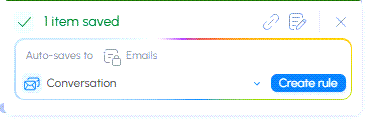
- In the notification that appears when the email is saved, next to Auto-saves to, select Conversation from the rule type list.
- Click Create rule.

- Save one email at a time. The rule options don’t appear when you save several emails together.
- If a rule already exists for the email, the notification shows Manage rule, which opens the Automation Dashboard.
When sending an email
Auto-save & send saves the email you are composing, creates a rule for its conversation, and sends the message. From then on, every reply, reply all, and forward in the conversation is saved to the same location.
- After composing your message, open harmon.ie.
- Hover over the destination SharePoint, Teams, or OneDrive location and click Auto-save & send (
 ).
).
Alternatively, right-click the location and select Auto-save & send. - If the email has attachments, choose which items to save and click Auto-save & send.
 ).
).How do I automatically save emails from a sender?
A sender rule saves every email from one sender to the same location.
- Save an email from the sender to a SharePoint, Teams, or OneDrive location.
- In the notification that appears when the email is saved, next to Auto-saves to, select the sender’s name from the rule type list.
- Click Create rule.
How do I keep saving new emails from an Outlook folder?
An Outlook folder rule saves new emails from an Outlook folder and its subfolders to a SharePoint, Teams, or OneDrive location. You and your colleagues can each have a rule that saves to the same SharePoint or Teams location. In the sidebar, the destination folder is marked with a rule icon ( ).
).
You can create an Outlook folder rule in your own mailbox or in a shared mailbox.
In your mailbox
- In harmon.ie, right-click the SharePoint, Teams, or OneDrive location, click New (
 ), and select Save Outlook folder (
 ). You can also drag the folder onto the location.
 - Select the Outlook folder.
- To save the emails directly into the location, clear Create a folder with the same name. Otherwise, they are saved in a new folder named after the Outlook folder.
- Turn on Keep saving new emails.
- Click Copy emails to keep the emails in Outlook as well, or Move emails to move them to the Outlook Deleted Items folder. The rule keeps this choice for every email it saves.

 ), and select Save Outlook folder (
 ). You can also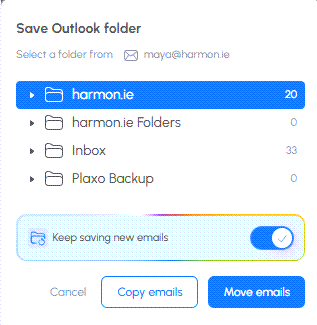
The folder’s existing emails are saved straight away. For more about saving folders, see How do I save an Outlook folder.
- If you have access to more than one mailbox, first select your mailbox next to Select a folder from.
- An Outlook folder can save to one location only. If the folder, a folder above it, or one of its subfolders already saves somewhere, the Keep saving new emails switch is not offered.
- A rule’s destination cannot be changed. To save the folder somewhere else, delete the rule and save the folder again.
In a shared mailbox
- In harmon.ie, right-click the SharePoint, Teams, or OneDrive location, click New (), and select Save Outlook folder (). You can also drag the folder from the shared mailbox onto the location.
- Next to Select a folder from, select the shared mailbox, then select the Outlook folder.
- To save the emails directly into the location, clear Create a folder with the same name.
- Turn on Keep saving new emails and click Copy emails.

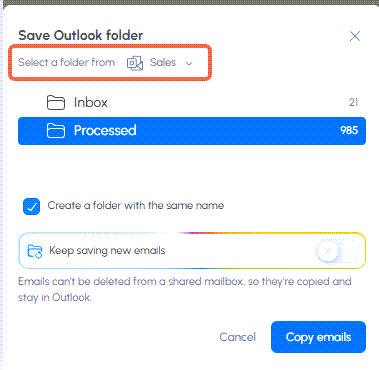
- Emails from a shared mailbox are always copied. They can’t be moved.
- If a shared mailbox isn’t listed, open one of its emails in Outlook, then try again.
- If you have read-only access to the shared mailbox, you can copy its emails, but Keep saving new emails is not offered.
Run your rules
Your rules save emails on an automation run. If the harmon.ie Desktop app is installed and you are signed in to it, runs happen on a schedule in the background, with nothing for you to do. If it isn’t, your rules save emails only when you start a run yourself, from the Automation Dashboard or from a folder. In this case, harmon.ie reminds you when new emails are waiting to be saved.
Each run saves up to 200 emails per rule. The rest are saved on later runs.
How does automation run in the background?
Desktop app required
When the harmon.ie Desktop app is installed, signed in, and connected, your rules run on their own, even while the add-in is closed. A run happens once an hour and goes through every one of your rules. Results appear in the Automation Dashboard as they happen, with the Last run and Next run times.
In the Outlook add-in, the dashboard header shows the state of your Desktop app connection:
- Online – the Desktop app is connected and running your rules.
- Desktop app is not installed – select Contact admin to ask your administrator to install it.
- Can’t reach your desktop app – open the Desktop app and sign in.
How do I run all my rules?
You don’t have to wait for the next scheduled run. Run now goes through all of your rules straight away, and is the only way rules run at all when you don’t have the Desktop app.
- Open the Automation Dashboard from the toolbar ().
- Select Run now.
The Automatic saving card shows the run’s Saved and Issues counts, next to the Last run time.
How do I save an Outlook folder’s pending emails?
When an Outlook folder rule saves to a location, new emails in the Outlook folder wait there until the next automation run. You can save them from the destination folder, without opening the Automation Dashboard.
- Right-click the destination folder, marked with a rule icon (
 ), or open it and click the Run icon (
 ).
). - Select Save pending emails. The action reads Run folder rule when no emails are waiting, or when harmon.ie cannot tell how many.
- Keep harmon.ie open while your emails are saving.
Hover over the Run icon ( ) to see how many emails are waiting.
Manage your rules
How do I run, disable, or delete a rule?
- Open the Automation Dashboard from the toolbar ().
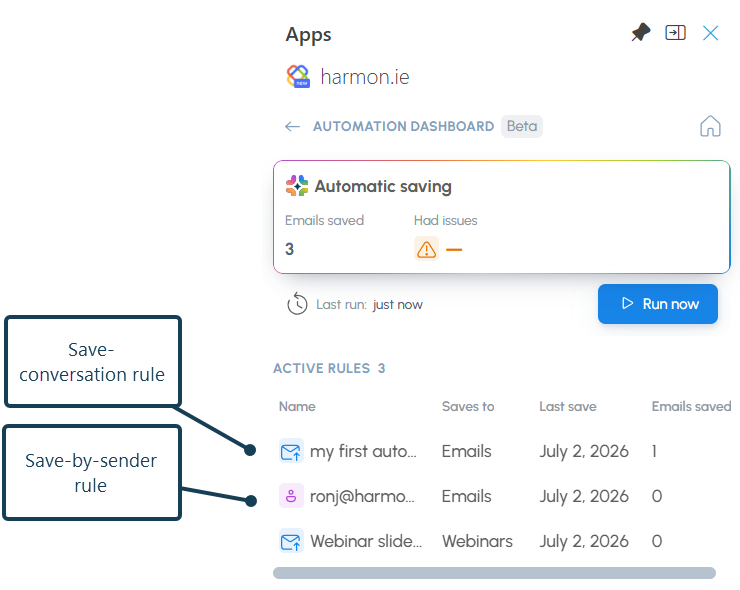
- In the Active rules table, find the rule you want. The table lists every rule you have created, with its destination, when it last saved an email, how many emails it has saved, and how many had issues. To see which shared mailbox a rule saves from, hover over the rule.
- Right-click the rule and select:
- Run rule – save the rule’s waiting emails now, without waiting for the next run.
- Disable rule – stop the rule from saving emails without deleting it. The rule is marked Off; select Enable rule to resume.
- Go to location – open the rule’s destination location (SharePoint, Teams, or OneDrive) in harmon.ie.
- Delete – remove the rule, and click Delete rule to confirm. Emails already saved to Microsoft 365 are not affected.
- Rules currently cannot be edited. To change where a rule saves, or what it matches, delete it and create a new one.
- You can keep up to 100 auto-save rules. When you reach the limit, the rule that saved least recently is removed.
Automatically saved emails: metadata, naming, categories
What metadata do automatically saved emails get?
harmon.ie fills the email header columns, such as From and To, for every email a rule saves. If the location has other required columns, the emails a rule saves get the values you entered in those columns when you saved the first email that created the rule. For an Outlook folder rule, that’s the first email saved from the folder.
How are automatically saved emails named?
Every email a rule saves is named with its subject, sender, and date. Because each name is unique, an email that is already saved in the location isn’t saved again.
Which emails aren’t saved automatically?
To keep your saved conversations and folders clean, rules don’t save these emails, even when they match:
- Automatic replies, such as out-of-office messages
- Delivery failure reports and read receipts
- Meeting requests, responses, and cancellations
- Message recall notices
- Junk email
How do I find emails that were saved?
harmon.ie adds the Saved in M365 category to any email saved to Microsoft 365 – automatically or manually, by you or a colleague. Look for this category in your inbox to find saved emails.
How do I find emails that couldn’t be saved?
If harmon.ie tried to save an email but couldn’t, it counts it under Issues in the Automatic saving section, and marks the email in your inbox with the Had issue category. Check your inbox for emails in that category and try saving them again.
How do I know if a colleague already saved an email?
When a colleague saves an email that you also received, harmon.ie adds the Saved in M365 category to your copy in Outlook, showing that it was already saved and where, so you don’t save it twice.
If you don’t see shared categories, see Why don’t I see categories or shared saves?
Why don’t I see categories or shared saves?
If saved emails aren’t marked with categories in your inbox, or you don’t see when a colleague has already saved an email:
- Check that email categories aren’t turned off in your settings. See Apply categories to saved emails.
- Make sure you have access to the saved location. Otherwise, the category doesn’t show.
- If shared categories still don’t show, contact your administrator and refer them to Set Up Shared Categories in New harmon.ie.