New harmon.ie
 Manage Microsoft 365 Files With harmon.ie
New harmon.ie allows you to manage files saved in SharePoint, Teams, or OneDrive from within Outlook or in a desktop app.
You can perform the following tasks with harmon.ie:
- CREATE: Create new Microsoft 365 folders, files, and links.
- OPEN:
- SUMMARIZE: Summarize a document or email with Copilot (Beta).
- METADATA: Edit the metadata of Microsoft 365 and files, or edit multiple files at once.
- COPY / MOVE: Copy or move files between Microsoft 365 locations.
- DOWNLOAD: Download files to your computer.
- DELETE: Delete files and folders.
- RENAME: Rename files and folders.
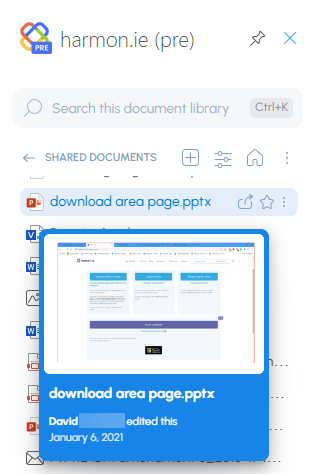
- THUMBNAIL: View a file’s thumbnail.
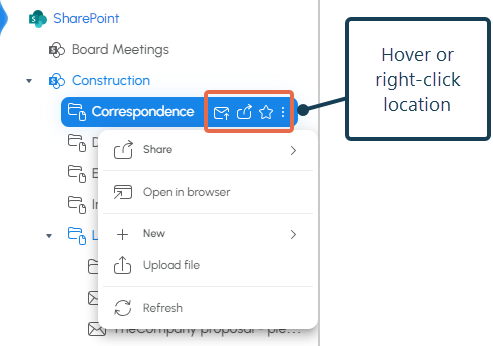
To open the list of available commands for each location or file, do one of the following:
- Hover over the location or file, then click one of the quick actions or the More actions icon (
 ).
). - Select the location or file, then right-click to open the command menu.

- Double-click a location to open it in the Content view, then select one of the commands at the top.

 ).
).
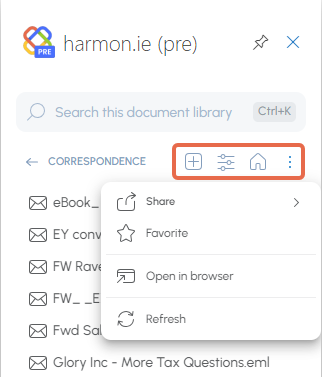
Common commands have shortcuts.
How to create a new Microsoft 365 folder?
- In harmon.ie, locate the SharePoint, Teams, or OneDrive location where you want to create the new folder.
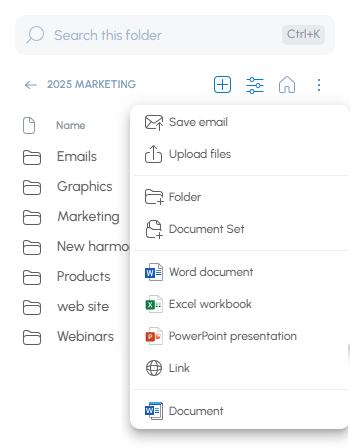
- Right-click the location in which you want to create the new folder, then select New ().
Alternatively, open the location by double-clicking its name and click New (). - Select Folder ().
- Type the name of the folder, then click Create.
 ).
). ).
). ).
).
How to create a new file?
- In harmon.ie, locate the SharePoint, Teams, or OneDrive location where you want to create the new file.
- Right-click the location in which you want to create the new folder, then select New ().
Alternatively, open the location by double-clicking its name and click New (). - Select the file type you want to create. harmon.ie displays all the content types that are configured in the Microsoft 365 location. By default, Word document, Excel workbook, and PowerPoint presentation.
- Type the name of the file, then click Create.
How to create a new link?
- In harmon.ie, locate the SharePoint, Teams, or OneDrive location where you want to create the new link.
- Right-click the location in which you want to create the new link, then select New ().
Alternatively, open the location by double-clicking its name and click New (). - Select Link ().
- Type the link URL and the link name, then click Create.
 ).
).How to open files for viewing or editing?
- In harmon.ie, locate the file (document or email) you want to open.
- Double-click the file name to open it.
- MICROSOFT 365 FILES (Word, Excel, PowerPoint, not emails): The first time you double-click a file, harmon.ie asks if you want to open it in the browser app or the desktop app. harmon.ie will remember your preference.
- PDF AND EMAIL FILES (.pdf, .eml, .msg): harmon.ie asks whether to open the file in the browser or a desktop app. Opening in a desktop app uses the app associated with the file type, or Microsoft OneDrive when the harmon.ie Desktop app isn’t installed or running. See how to open files in desktop apps.
- OTHER FILE TYPES: Double-click opens the file in the browser.
Alternatively, right-click the file name and select Open in app or Open in browser.
How to open locations and files in a browser?
You can open any SharePoint, Teams, and OneDrive location and any file type in a Web browser. To do that:
- In harmon.ie, locate the Microsoft 365 location or file you want to view in browser.
- Right-click the location or file, then click Open in browser ().
Alternatively, open the location by double-clicking its name. Click More actions () at the top, and then select Open in browser ().
 ).
).How to open files in desktop apps?
Open a file in its default app
Use Open in app to open a file in the desktop app associated with its file type. Right-click the file and select Open in app. What opens depends on whether the harmon.ie Desktop app is available:
- The harmon.ie Desktop app is installed and running: every file opens in the app that Windows sets as the default for its file type.
- The harmon.ie Desktop app is not installed, or you are not signed in:
- Microsoft 365 files (Word, Excel, PowerPoint) open in their desktop app.
- PDF and email (.eml, .msg) files open through the Microsoft OneDrive desktop app. When prompted, check Always allow harmon.ie to open OneDrive, click Open Microsoft OneDrive, then click Open. Make sure OneDrive is installed and you are signed in.
Choose which app opens a file
Desktop app required
Use Open with to open a file in an installed app of your choice, instead of its default app.
- Right-click the file and select Open with.
- In the submenu, select an app, or use Search the Microsoft Store or Choose another app to find another one.
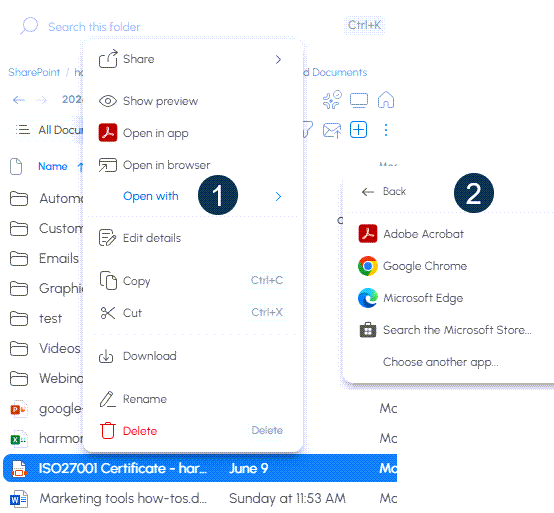
- Open with is disabled when the harmon.ie Desktop app is not installed or not running.
- For a file type that Windows doesn’t recognize, the submenu shows only Search the Microsoft Store and Choose another app, with no app list.
How to open channels in Teams app?
- In harmon.ie, locate the channel you want to open in Teams.
- Right-click the channel name and then click Open in Teams app ().
Alternatively, open the channel by double-clicking the channel name. Click More actions () at the top, and then select Open in Teams app ().
 ).
).How to preview a document?
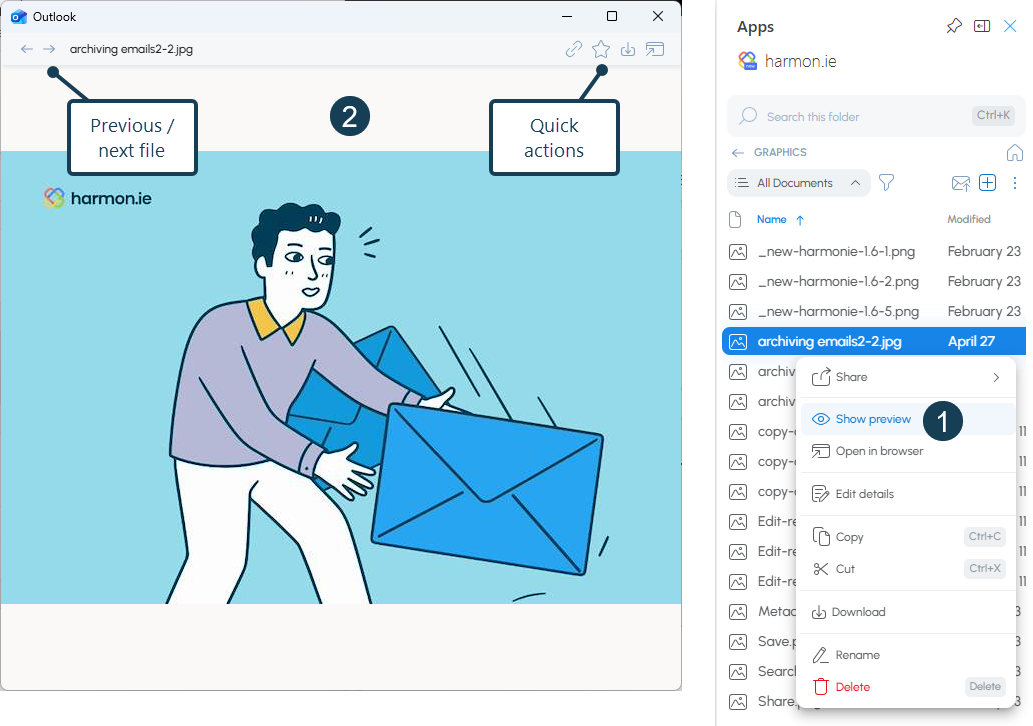
Open a full preview of any document in a separate window without opening it. Use the navigation arrows to browse other files in the same location.
- Right-click a document and select Show preview ().
- Use the previous and next arrows at the top of the preview window to move between files in the same location.
- Use the quick actions in the preview’s top bar: Copy link, Favorite, Download, Open in app, and Open in browser.
 ).
).- Preview works from the tree view, search results, and folder drill-down. Selecting a different file in the main pane also updates the open preview.
- Files that cannot be previewed show a “No preview available” placeholder; the navigation arrows continue working so you can move to the next file.
- In New Outlook and Outlook on the web, the preview opens in a browser pop-up window; in harmon.ie Desktop it opens as a native window.
How to summarize a document or email with Copilot?
Now in beta.
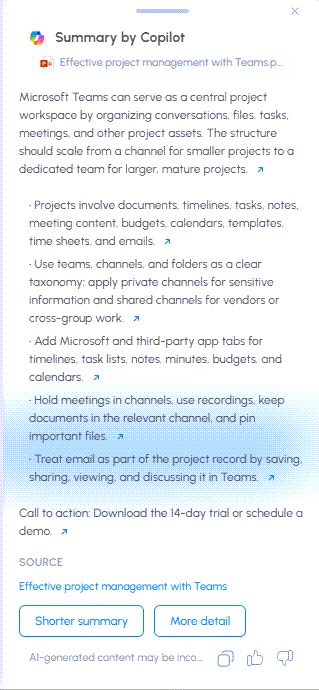
Get a Copilot summary of a file or a saved email without opening it: a short overview, then the key points, decisions, and action items.
- In harmon.ie, select the file or saved email you want to summarize.
- Hover over it or right-click it, and select Summarize ().
- Read the summary in the Summary by Copilot panel. Select Shorter summary or More detail to change its length, or Copy to copy the text.
 ).
).
- Summarize works on Word, PDF, PowerPoint, OneNote, text, and email (.eml and .msg) files saved in Microsoft 365.
- You see Summarize only if your administrator turned on Microsoft 365 Copilot and you have a Microsoft 365 Copilot Business license. If you don’t see it, contact your administrator.
How to copy or move files?
You can copy or move files between Microsoft 365 locations with copy, cut, and paste or by dragging and dropping them. In the desktop app, you can also copy files between harmon.ie and other apps – your computer, an email, or another application.
Copy or move files between Microsoft 365 locations
Copy or move files within harmon.ie, for example from OneDrive to a SharePoint folder, or from one SharePoint folder to another.
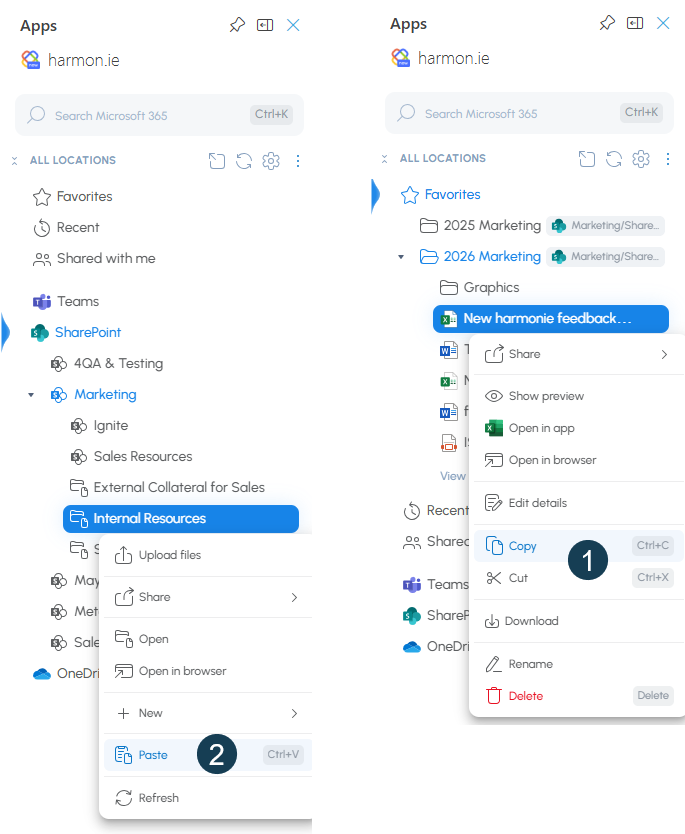
Copy or move files between Microsoft 365 locations with copy, cut, and paste
- Select one or more files and choose Copy () or Cut () from the right-click menu, or press Ctrl+C / Ctrl+X (Cmd+C / Cmd+X on Mac).
- Navigate to the destination library, folder, or Teams channel.
- Choose Paste () from its three-dot menu, or press Ctrl+V (Cmd+V on Mac).
- If a file with the same name already exists, you are prompted to replace the file, keep both, or skip it.
- If pasting into a different library or site, harmon.ie warns that some metadata may not be transferred. Click Paste anyway to continue.
- If the destination library has required properties, the property editor opens automatically. Fill in the required fields and save.
- After a successful paste, you can use Copy links or Edit details directly from the confirmation message.
 ) or Cut (
 ) from the right-click menu, or press Ctrl+C / Ctrl+X (Cmd+C / Cmd+X on Mac).
 ) from its three-dot menu, or press Ctrl+V (Cmd+V on Mac).
- Copy and Cut apply to files only, not folders or sites. Cut is not available in Recent and Shared with me.
- Files checked out by another user cannot be cut, and you can only paste into locations where you have permission to add files.
- A progress indicator shows the paste status; you can cancel at any time.
Copy or move files between Microsoft 365 locations with drag and drop
- Select one or more files.
- Drag them onto a destination library, folder, or Teams channel in harmon.ie.
- Drop to move the files. To copy them instead, hold Ctrl while you drop.
- The same prompts as paste apply: if a file with the same name already exists, you can replace it, keep both, or skip it; harmon.ie warns when metadata may not transfer to a different library or site; and the property editor opens when the destination has required properties.
- Drag and drop applies to files only, not folders or sites, and you can drop only into locations where you have permission to add files.
- When the destination doesn’t have the same metadata fields as the source, only the fields that exist in both locations are copied.
Copy files between harmon.ie and other apps
Desktop app only
In the harmon.ie Desktop app, you can copy files between harmon.ie and your computer, an email, or another application.
Copy files between harmon.ie and other apps with drag and drop
Select one or more files and drag them from harmon.ie onto:
- File Explorer or your desktop to copy them to your computer. The files are always copied – the Microsoft 365 originals stay where they are, so this can’t be used to move them out.
- An email, where Outlook shows two drop areas: drop the files on Attach files to attach them, or on Upload to OneDrive and share link to have Outlook upload them to your OneDrive and insert a link.
- Another app that accepts files, where what happens depends on the app (it may open, upload, or copy the files).
Copy files between harmon.ie and other apps with copy and paste
- Copy a file in harmon.ie and paste it into File Explorer, Finder, or an Outlook email.
- Copy files from your computer and paste them into a harmon.ie location to upload them.
How to download a file to your computer?
Download
Outlook add-in only
- In harmon.ie, right-click the file you want to download.
- Select Download (
 ). The file is saved to your downloads folder.
 ). The file is saved to your downloads folder.
Save As
Desktop app only
- In the harmon.ie Desktop app, right-click the file you want to save.
- Select Save As ().
- In the dialog, choose the destination folder and confirm or change the file name, then click Save.
- When the save completes, you can click Show in folder to view the file in File Explorer, or Open to open the saved file immediately.
To save several files in one go, drag them out of harmon.ie instead – drag and drop accepts a multi-file selection, and lets you drop the files straight into the folder you want.
How to edit the metadata of Microsoft 365 files?
- In harmon.ie, locate the SharePoint, Teams, or OneDrive file.
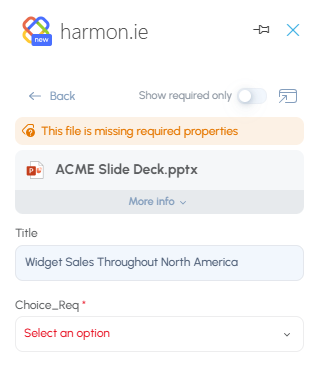
- Right-click the file name and then select Edit details ().
- The property editor opens as a panel within harmon.ie.
- Edit the field values as needed.
- Required fields are marked with an asterisk and must be filled before saving.
- Use the Show required only switch at the bottom of the editor (available when there are required properties) to toggle between showing only required fields or all available fields.
- Click the Edit in browser icon () to continue editing the file’s properties in the browser.
- Click Save to apply changes, or Cancel to exit without saving.
 ).
).
- You or your admin can configure harmon.ie to open the property editor automatically after saving an item.
- Supports all major SharePoint field types: single-line and multi-line text, number, currency, percentage, yes/no, date, date & time, choice (single and multi-select), lookup, person/group, and managed metadata (taxonomy and Enterprise Keywords), with a find-as-you-type search for managed metadata fields; clicking a managed metadata field displays the full list of available options. Fields that are non-editable or restricted by your organization are shown in view-only mode with an explanatory banner.
How to edit the metadata of multiple files at once?
You can update shared metadata fields across multiple files in a single operation.
- Select multiple files in the Home view or Content view.
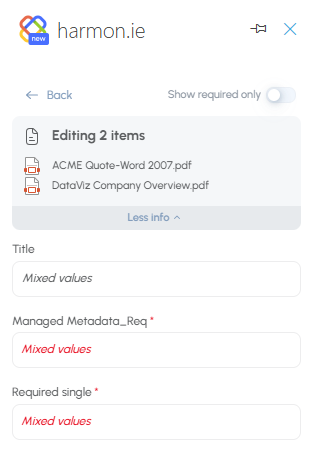
- Click Edit details () in the toolbar at the bottom of the screen, or right-click and select Edit details. The property editor opens showing Edit N items at the top.
- Edit the fields you want to update. Fields left unchanged keep their original per-file values. Fields that have different values across the selected files show a Multiple values placeholder – entering a new value replaces the existing values in all selected files.
- Click Save to apply changes to all selected files, or Cancel to discard changes.
How to delete files or folders?
- In harmon.ie, select the file(s) or folder(s) you want to delete.
- Right-click and select Delete ().
 ).
).How to rename files or folders?
- In harmon.ie, locate the file or folder you want to rename.
- Right-click the file or folder and select Rename ().
- Type the new name and then click Rename.
 ).
).How to view a thumbnail of Microsoft 365 files?
- In harmon.ie, locate the SharePoint, Teams, or OneDrive file (document or email).
- Hover over a file for 2 seconds to display its thumbnail. The thumbnail shows a preview of the file (for images, PowerPoint presentations, and PDFs), along with the name of the last editor and the last modified date.