New harmon.ie
 Email Automation: Admin Checklist
New harmon.ie’s email automation saves emails to Microsoft 365 automatically, based on rules your users set up. It is on for all users by default. Use this checklist to make sure everything it relies on is in place, or turn it off.
Checklist
- Consent is granted for all features. Automation needs the permissions in the New harmon.ie consent link. If your organization granted only part of them, for example when moving from harmon.ie Classic, grant the additional consent.
- New harmon.ie is deployed. Deploy the Outlook add-in to your users.
- The harmon.ie Desktop app is deployed (recommended). Rules run on a schedule in the background only while the Desktop app is running and signed in. Without it, harmon.ie reminds users when emails are waiting to be saved, and they save them in one click.
- Save locations have an email content type (recommended). Without it, emails are still saved and marked in the user’s own inbox, but colleagues who received the same email aren’t shown that it was already saved (shared categories). See How to set up email header mapping.
- Email categories are turned on (recommended, on by default). With Apply categories to saved emails on in the Admin tab, emails a rule saves are marked in Outlook, so users can see which emails were saved and find those that couldn’t be saved. Users can also turn it off in their own settings.
- Users have Full Access to the shared mailboxes they automate. With read-only access, users can’t create rules in a shared mailbox. Shared mailboxes also need the additional consent above, if your organization granted only part of it.
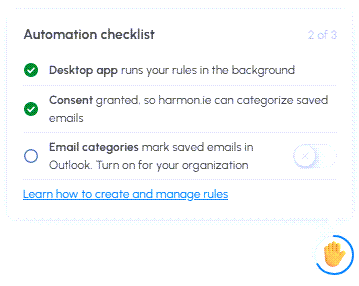
In harmon.ie, the Automation checklist in the Automation Dashboard shows whether the Desktop app, consent, and email categories are set up. As a harmon.ie admin, you can turn on email categories for your organization directly from it.
How automation saves emails
- Unique names: Automation always names saved emails with the subject, sender, and date, in the order you set in Save email naming, adding any of the three your format leaves out. Because every name is unique, an email whose name already exists in the location was already saved, by the user or a colleague, so automation skips it.
- Metadata: harmon.ie fills the email header columns for every email. Other required columns get the values the user entered when saving the first email of the rule. For an Outlook folder rule, that’s the first email saved from the folder.
- Categories: When email categories are turned on, emails a rule saves get the Saved in M365 category and a location category showing where they were saved, like emails saved manually. Emails that couldn’t be saved get the Had issue category. Emails a rule moves to Deleted Items aren’t marked.
How to turn email automation off?
- Open the Admin tab.
- Under Email automation, select Don’t allow to turn it off for all users, or Enable for harmon.ie admins only to try it yourself before rolling it out.
When automation is off for a user, the Automation Dashboard is hidden, harmon.ie doesn’t offer rules, and the user’s existing rules don’t run.
Help your users get started
- Create rules: Users create rules when they save an email, save an Outlook folder, or send an email.
- Check that rules are running: The Automation Dashboard shows Online when the Desktop app is connected, and when the next run is due. If users report that the dashboard can’t reach the Desktop app, make sure it is deployed, running, and signed in with the same account.
- Share feedback: Users can send feedback from within harmon.ie: open the Home view, click More actions (
 ) next to All Locations, select Send feedback (), rate the experience, add any comments, and send.
 ) next to All Locations, select Send feedback (
 ), rate the experience, add any comments, and send.