New harmon.ie
 Automatically Save Email Headers in SharePoint Columns Using harmon.ie
This article applies to both harmon.ie Classic and New harmon.ie
harmon.ie’s email header mapping ensures that key information from your emails – like subject, sender, recipients, and sent date – is automatically extracted and saved as metadata when you save an email into SharePoint or Teams. This makes it easier to organize, classify, and find important emails later, without requiring manual tagging.
By mapping email headers to predefined metadata fields, harmon.ie helps your organization maintain consistency, improve searchability, and support compliance – right from Outlook.
How to define email header mapping?
There are two ways to define email header mapping in harmon.ie:
- harmon.ie’s default email header mapping (available in harmon.ie Classic 9.5 and later, and in New harmon.ie):
- No Microsoft 365 admin involvement required
- Ideal for standard setups and quick configuration
- Works out-of-the-box for both harmon.ie Classic and New harmon.ie
- Customized email header mapping:
- Allows setting additional columns, non-standard column names or column types, and non-standard content type names
- Recommended if your document libraries already include email content types or email columns
- Requires Microsoft 365 admin assistance
- Requires customizing email header mapping in both harmon.ie Classic and New harmon.ie (if using a mix of harmon.ie Classic and New harmon.ie)
To learn how to configure custom email header mapping, read:
- New harmon.ie: Customize Saving Email Headers in SharePoint Columns Using New harmon.ie
- harmon.ie Classic: Customize Saving Email Headers in SharePoint Columns Using harmon.ie Classic
What harmon.ie does when you save an email
When a user saves an email to SharePoint or Teams, what harmon.ie does depends on the save location:
- The location already has an email content type: harmon.ie assigns the content type to the email and maps the email headers into the email columns.
- The location has no email content type: harmon.ie creates the email structure, adding an email content type, email columns, and an Emails view.
- harmon.ie creates the email structure on the user’s behalf, so the user needs at least Edit permission in the Microsoft 365 location.
- If an email content type already exists in the location, harmon.ie will not create an Emails view, even if the view itself is missing.
Configuring whether and where harmon.ie creates the email structure
harmon.ie can be configured to create the email structure when saving emails to SharePoint and/or Teams.
New harmon.ie
New harmon.ie does not prompt users to create the email structure. Administrators control it with the Create the email content type setting, per destination (SharePoint and Teams), in the harmon.ie admin configuration.
harmon.ie Classic
harmon.ie prompts the user to create an Emails view. You can control whether and where this prompt appears:
- Users can control this setting in harmon.ie Classic options.
- Administrators can centrally manage this setting for all users using the AutoEmailHeaderMappingBehavior provisioning registry key. [Download registry key sample]
Email metadata columns created by default email header mapping
| Email Column Display Name | Column Internal Names | Type | Description |
|---|---|---|---|
| Attachments | hrmV2Attachments | Single line of text | Indicates if the message has attachments. The default value should be “No” |
| CC | hrmV2CC | Single line of text | Carbon copy recipients |
| Conversation Index | hrmV2ConversationIndex | Single line of text | Unique conversation identifier |
| Conversation Topic | hrmV2ConversationTopic | Single line of text | The original subject line, can be used for grouping emails in harmon.ie Classic |
| Email Thread | hrmV2InternetConversationId | Single line of text | Identifies the email thread, can be used for grouping emails in New harmon.ie. Required for shared categories. |
| From | hrmV2From | Single line of text | Sender’s address |
| Mail Preview Data | hrmV2MailPreviewData | Multiple lines of text | A harmon.ie-specific column that enables previewing email messages in harmon.ie Classic |
| Message ID | hrmV2MessageID | Single line of text | A unique identifier for the message. Required for shared categories. |
| Received | hrmV2Recieved | Date and Time | Received date and time |
| Subject | hrmV2Subject | Single line of text | Email subject line |
| To | hrmV2To | Single line of text | Primary recipients |
harmon.ie’s Emails view
harmon.ie’s generated Emails view contains the following columns:
- Name: File name as saved by harmon.ie
- Attachments
- To
- From
- Received
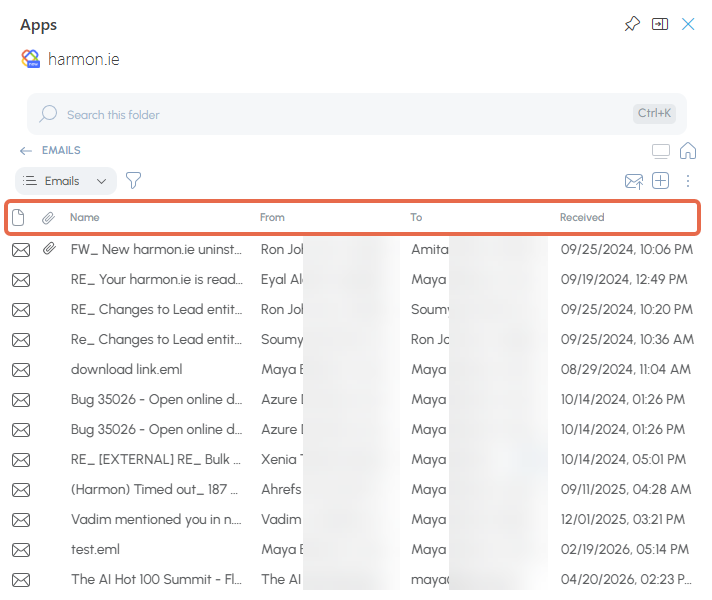
You can edit the Emails view using the SharePoint Web Interface and modify the contained columns.