New harmon.ie
Get to Know the harmon.ie Desktop App
The harmon.ie Desktop app lets you browse SharePoint, Teams, and OneDrive the way you browse folders in File Explorer: your locations on the left, the open location in the middle, and a preview and the details of the selected item on the right. To open the app, see Open the harmon.ie Desktop app.
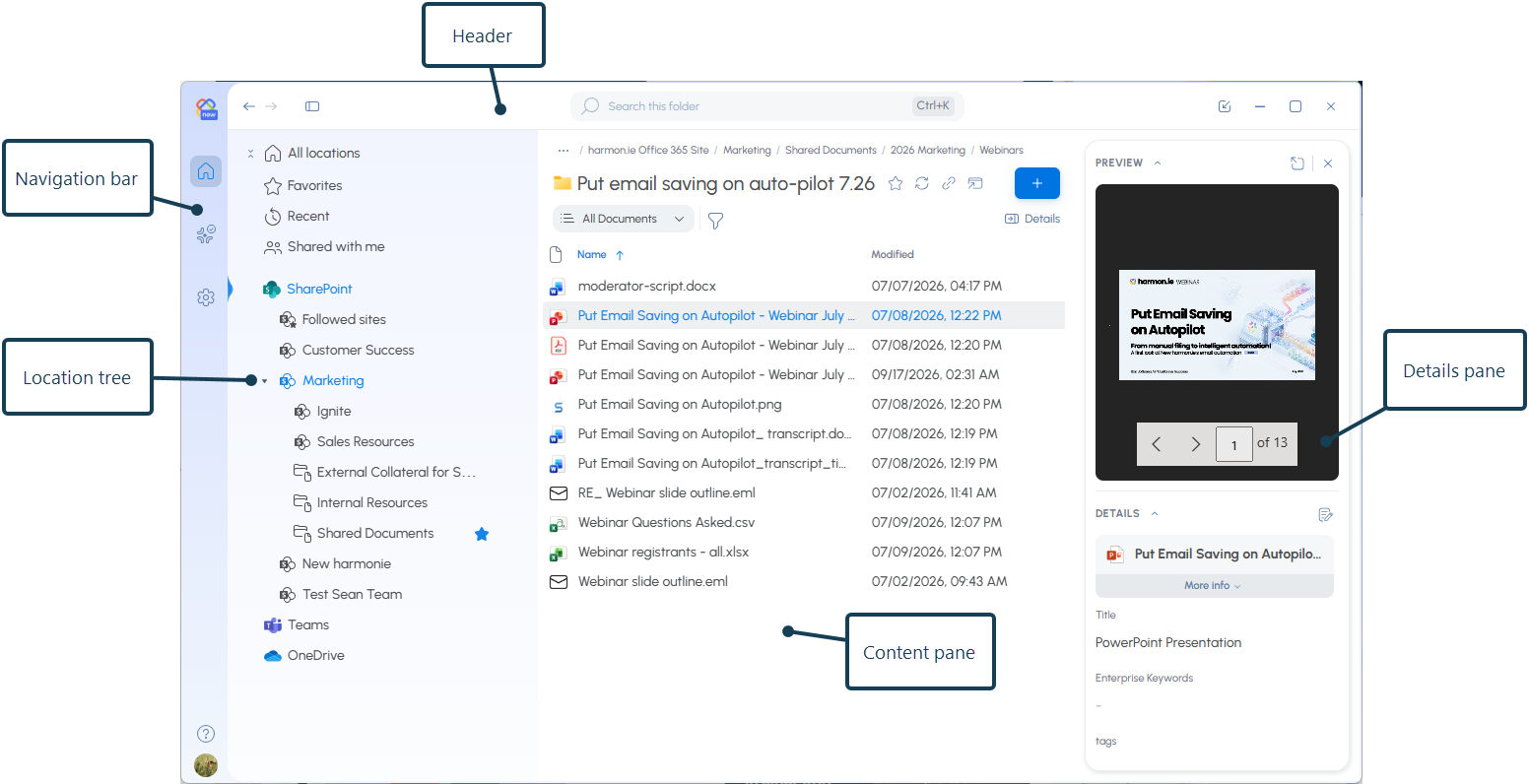
What’s in the harmon.ie Desktop app window?
- Navigation bar: open the Home page (
 ), the Automation Dashboard (), and Settings (). At the bottom, Help (
 ) opens Get support, What’s new, Training videos, and Send feedback, and your account picture opens the Account menu, where you can sign out.
- Header: Back and Forward, the button that shows or hides the locations tree, and the search bar.
- Locations tree: all your Microsoft 365 locations, grouped as in the add-in: Favorites, Recent, Shared with me, Teams, SharePoint, and OneDrive.
- Content pane: the contents of the open location, with its navigation path and a toolbar for views, filters, and Create or upload.
- Details pane: a preview and the details of the selected item.
 ), and
 ). At the bottom, Help (
 ) opens Get support, What’s new, Training videos, and Send feedback, and your account picture opens the Account menu, where you can sign out.
How do I move between locations?
- Click a location in the tree to open it in the content pane. To see its sub-locations without opening it, click the arrow (
 ) next to it.
- Double-click a folder in the content pane to open it.
- Select a segment of the navigation path to jump to that level.
- To move back and forward, click Back () or Forward () in the header, use the back and forward buttons on your mouse, or press Alt+← or Alt+→.
 ) next to it.
 ) or Forward (
 ) in the header, use the back and forward buttons on your mouse, or press Alt+← or Alt+→.
The tree always shows where you are: the path to the open location is expanded and the location is highlighted.
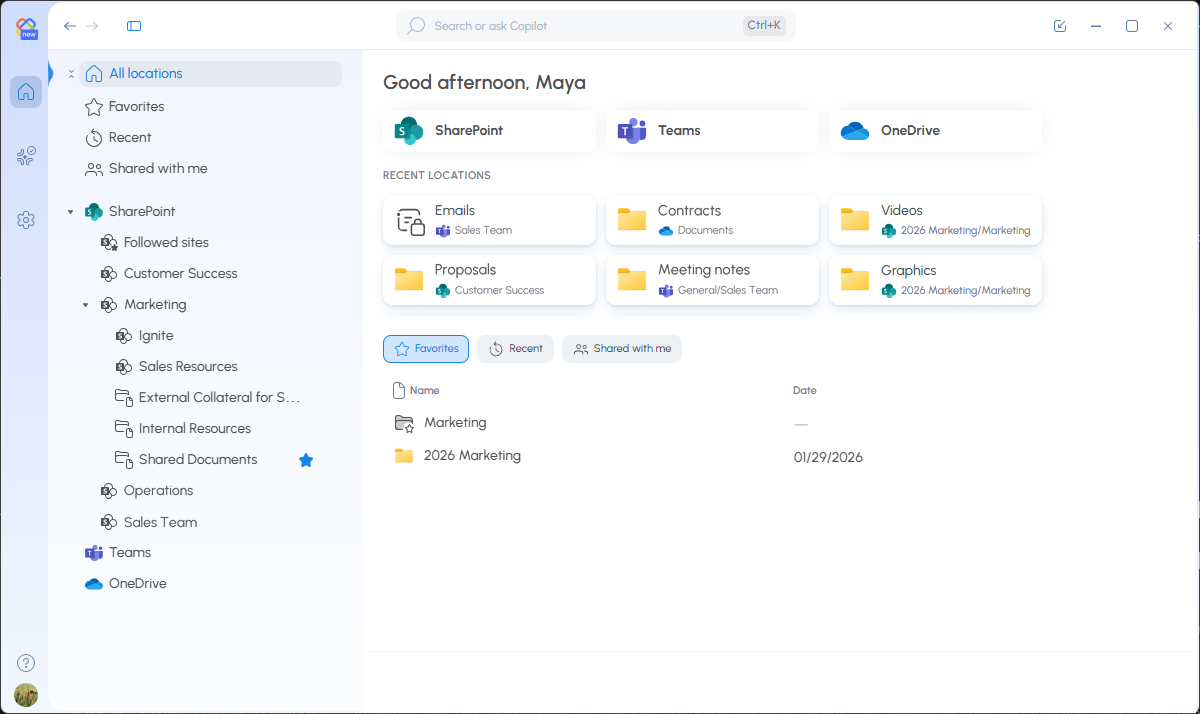
What’s on the Home page?
Click Home ( ) on the navigation bar to open the Home page.
- Shortcuts: open SharePoint, Teams, or OneDrive.
- Recent locations: the folders you recently saved to. Click a card to open the folder, or drag emails or files onto it to save them there.
- Your files: switch between the Recent, Favorites, and Shared with me tabs.
From the Home page, the search bar searches across Microsoft 365, and you can ask Copilot. In any other location, it searches that location.
How do I preview a file and see its details?
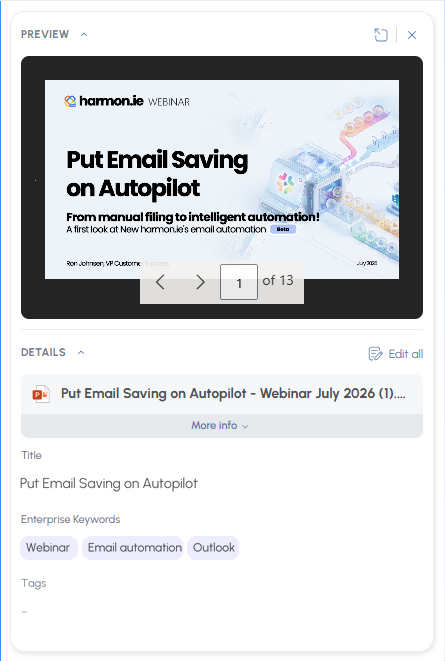
Select a file in the content pane. The details pane shows:
- Preview: the file’s content. To see it larger and move between the files in the location, click Open in preview window () to open the preview window.
- Details: the file’s details. To change them, click Edit all, or click one of the details, to open the Edit details panel. With several files selected, Edit all edits them together.
 ) to open the
If a file leaves required columns empty, the details show This file is missing required details. Click Edit all to fill them in.
For a location, the details show information such as its owners, members, channels, and last activity.
How do I resize or hide the panes?
- Drag the border between two panes to resize them, or the border between the preview and the details to share the pane between them. harmon.ie remembers the sizes you set.
- To hide or show the locations tree, click the locations tree icon () in the header.
- To hide or show the details pane, click Details () in the content pane toolbar.
 ) in the header.
 ) in the content pane toolbar.
When the window is narrow, harmon.ie shows one pane at a time. Use the locations tree icon and Details to switch between the tree, the content pane, and the details.
Keyboard shortcuts in the harmon.ie Desktop app
You can use the whole app from the keyboard. In addition to the shortcuts in New harmon.ie, the Desktop app has these shortcuts:
| Shortcut | Command |
|---|---|
| F6 / Shift+F6 | Move to the next or previous pane: the navigation bar, the tree, the content pane, and the details pane. |
| Alt+← / Alt+→ | Move back or forward. |
| Shift+F10 | Open the actions menu of the selected item. |
| Arrow keys, Enter | In the tree and the content pane, move between items, and open the selected item. |
How to send feedback to harmon.ie?
- Click Help () on the navigation bar, then click Send feedback.
- Select an icon that best matches how you feel about New harmon.ie.
- Optionally, type in your comments and let us know if we can contact you about your feedback.
- Click Send feedback.