
 harmon.ie Classic
 Getting started with harmon.ie Classic
Welcome to harmon.ie Classic!
harmon.ie Classic is an add-in that transforms Outlook for Windows (classic) into a central hub for all your SharePoint, Teams, and OneDrive files and locations. You can save, classify, find, share, organize and manage documents and emails across Microsoft 365 or SharePoint on-premises.
- Find out What’s new in harmon.ie Classic.
- Check out our short training videos.
harmon.ie Classic is available in two editions:
- harmon.ie 365 – works with SharePoint Online, Teams, and OneDrive. Requires Microsoft 365 consent.
- harmon.ie for SharePoint – works with SharePoint Online, SharePoint on-premises, and OneDrive. Does not require consent.
If harmon.ie is not yet installed for you, follow the direction in How to Install harmon.ie Classic for Outlook.
How to connect to Microsoft 365 or SharePoint on-premises
- Open Outlook and launch the harmon.ie sidebar, by clicking Show Sidebar. The harmon.ie sidebar can also be launched within email messages, meetings, and appointments.
- In harmon.ie 365:
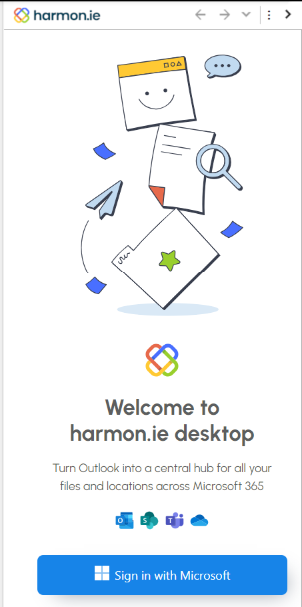
Click Sign in with Microsoft. harmon.ie signs you to Microsoft 365 using SSO, and automatically discovers, registers, and connects you to your Microsoft 365 locations. If consent is required, you will be prompted to grant harmon.ie consent.

In harmon.ie for SharePoint:
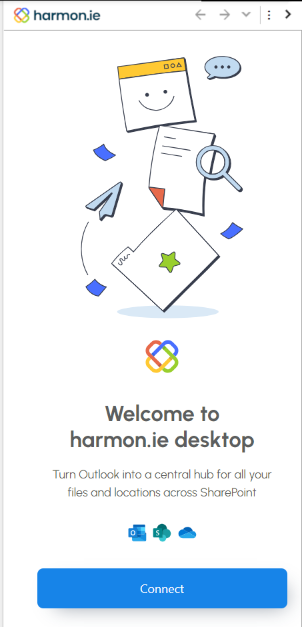
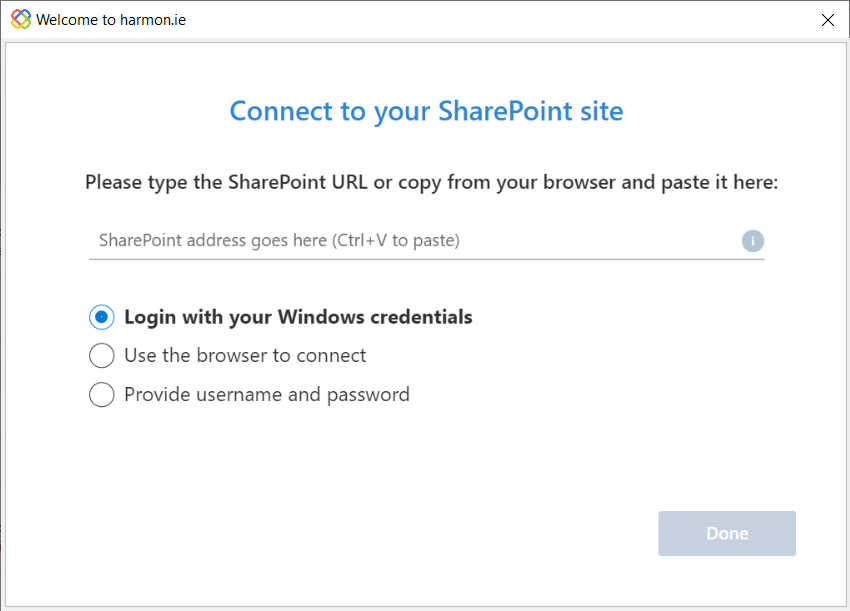
Click Connect. You are then asked to sign into your SharePoint site:

- Enter your SharePoint URL. We recommend copying the address from your browser. Take the beginning of the URL, in this format: https://<server>/<site>.
- Select one of the following login options:
- Login with your Windows credentials
- Use the browser to connect
- Provide username and password
- Click Done.
How to connect harmon.ie with Teams
This option is available in harmon.ie 365 only.
- Open the harmon.ie sidebar.
- Expand Teams, then double click to discover teams.

- Click all the teams you want to add, and then click Select.
- Click Add when done.

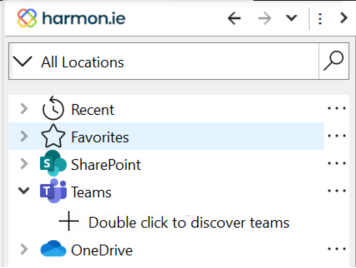
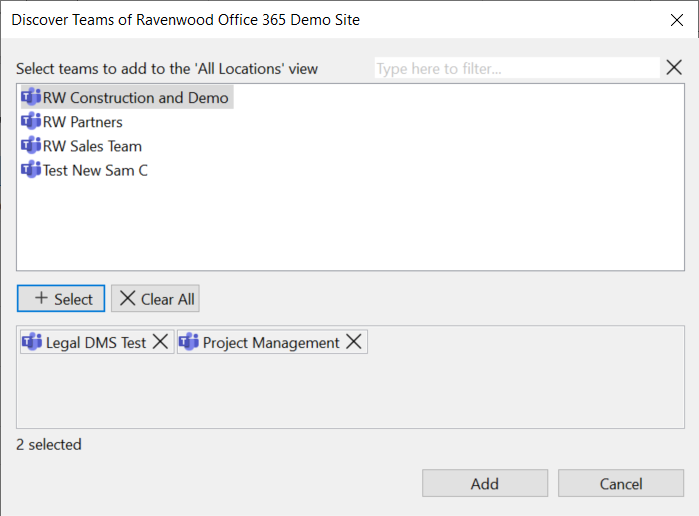
You can navigate between your Teams’ file locations, share emails and email attachments with team members by dragging them to the Teams channel’s Files location, and you can search for content within all your teams files. For more information, read Working with Teams.
How to navigate between your Microsoft 365/SharePoint on-premises locations
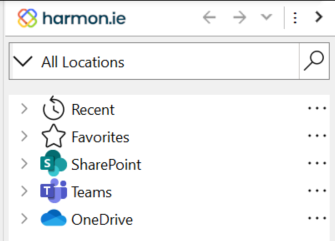
- harmon.ie offers a tree view of all your Microsoft locations:
In harmon.ie 365: SharePoint Online, Teams, and OneDrive.
In harmon.ie for SharePoint: SharePoint Online or SharePoint on-premises, and OneDrive.
In addition, it shows favorite locations and recent locations and files.

- Expand each location to view the underlying locations.
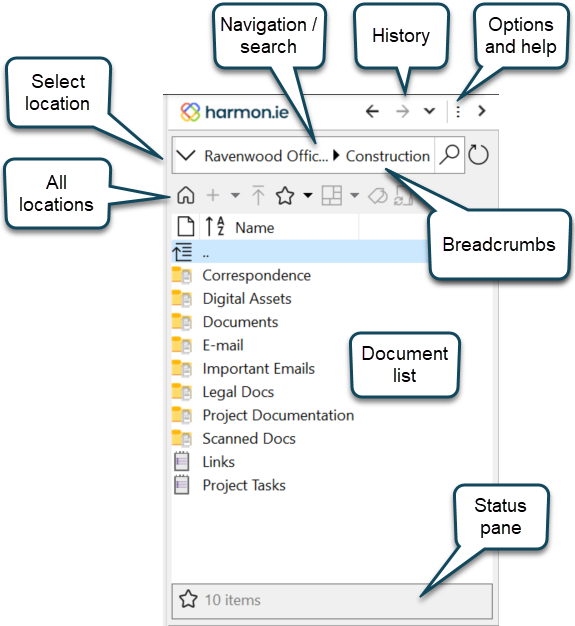
- To view the documents contained in a location, double-click it.
- To return to the All Locations> view, click the All Locations icon (
 ).
). - Use the navigation history to quickly navigate back and forth between visited locations.
- Add a location/list to your Favorites list and then quickly navigate to it using the Favorites drop-down button.
 ).
).How to find SharePoint, Teams, or OneDrive content
- Click the search icon (
 ) to search for content in SharePoint, Teams, and your OneDrive. Set search scope, search by metadata, and filter your search results to get to that one document you are looking for.
 - Use integrated SharePoint views and filter your content by tags.
 ) to search for content in SharePoint, Teams, and your OneDrive. Set search scope, search by metadata, and filter your search results to get to that one document you are looking for.
For more information, read Finding SharePoint, Teams, or OneDrive documents.
How to save emails and documents to SharePoint, Teams or OneDrive
- Drag one or more email messages and/or attachments to a location in the harmon.ie sidebar to upload them to SharePoint, Teams or OneDrive. If your company uses required metadata, harmon.ie automatically prompts you to fill them in.
- Message headers can be automatically converted to SharePoint, Teams or OneDrive document properties.
- Drag documents and folders from your computer to the harmon.ie sidebar to upload them to Microsoft 365.
- Use the harmon.ie ribbon to save incoming and outgoing email messages and attachments to SharePoint, Teams or OneDrive.


For more information, read Saving email messages to SharePoint, Teams, and OneDrive and Uploading content to SharePoint, Teams, and OneDrive.
How to manage SharePoint, Teams or OneDrive documents
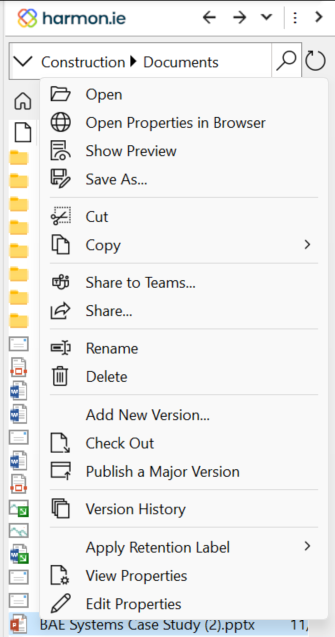
You can use the harmon.ie toolbar to create, upload, edit, share, and delete documents and emails in SharePoint, Teams or OneDrive.
- Right-click a SharePoint, Teams, or OneDrive document to view common operations. You can use this menu to copy documents and links to email messages, meetings, contacts, and to your computer; share documents; check in and check out documents; view version history and document properties; publish and approve documents; etc.
- Download documents to your computer, and work on local copies.
Or, synchronize document libraries on your computer so you can work on documents when you are offline.
For more information, read Working with documents.
How to share Microsoft 365 documents
- Right-click a document and select Share to share it with other people and groups.
- Drag and drop one or more SharePoint, Teams or OneDrive locations or documents to an email message to create links to them. Hold the Alt key while dragging and dropping a Microsoft 365 document to create an actual attachment.
- When you send an email message with a link to a OneDrive or Teams document, it is automatically shared with your email recipients.
- Use the harmon.ie ribbon button to replace attachments with links and send email, in one step.
For more information about sharing documents, read the help topic Sharing documents. Read Attaching SharePoint, Teams, and OneDrive documents to email messages to learn about sharing content via email messages.
