
 harmon.ie Classic
 Saving attachments to SharePoint, Teams, and OneDrive
With harmon.ie Classic, you can save attachments from incoming and outgoing email messages to SharePoint, Teams, or OneDrive.
This helps teams collaborate on documents and reduces mailbox size.
Part A. Save attachments to Microsoft 365
Choose how you want to save attachments:
- Drag and drop: The simplest way to save attachments from an incoming email in Outlook to SharePoint, Teams, or OneDrive.
- Save Attachments button: Save attachments to a recent location with one click. Additional save options give you further flexibility. The Save Attachments button is available on the harmon.ie ribbon, in the message context menu, and in the attachment context menu.
- Save attachments when sending emails: Save attachments when sending your email, optionally replacing them with links.
How to drag and drop attachments to save to SharePoint, Teams, or OneDrive
- Locate the SharePoint, Teams, or OneDrive location in the harmon.ie sidebar.
- In the message window or preview pane, select the attachments and drag and drop them to the selected location in the harmon.ie sidebar.
How to use the Save Attachments button to save attachments to SharePoint, Teams, or OneDrive
- Select the message containing the attachments you want to save.
- Click the Save Attachments button (
 ) on the harmon.ie ribbon. Alternatively, right-click the message or the attachment and then click Save Attachments. (Not available for messages in Rich Text Format (RTF).)
 - Select a suggested location from the list to save all attachments there with one click. Alternatively, click More locations to choose a different location and configure additional save options:
- Select which attachments to save.
- Replace attachments with links.
- Rename attachments.
- Create a new destination folder.
 ) on the harmon.ie ribbon. Alternatively, right-click the message or the attachment and then click Save Attachments. (Not available for messages in Rich Text Format (RTF).)
How to save attachments when sending emails
The Ask to save attachments on send setting determines whether harmon.ie prompts you to save attachments when sending emails that include them.
If Ask to save attachments on send is set to Always (default) or to Only if all recipients are from the following domains:
- Send your email containing attachments.
- The Save to Microsoft 365 dialog opens, allowing you to select the save location, choose which attachments to save, and replace attachments with links.
If Ask to save attachments on send is set to Never, you can still save your sent email’s attachments:
- Compose your email and attach the files.
- Click the Save Attachments button () on the harmon.ie ribbon.
- Select a suggested location from the list to save all attachments there.
Alternatively, click More locations to select another save location, choose which attachments to save, and replace attachments with links. - Send your email.
Part B. Configure how attachments are saved
- Rename attachments.
- Replace attachments with links.
- When the file name already exists.
- Set required properties.
- Availability of sent links.
- Monitor or stop uploads if needed.
How to rename attachments
By default, the attachment keeps its current file name when saved.
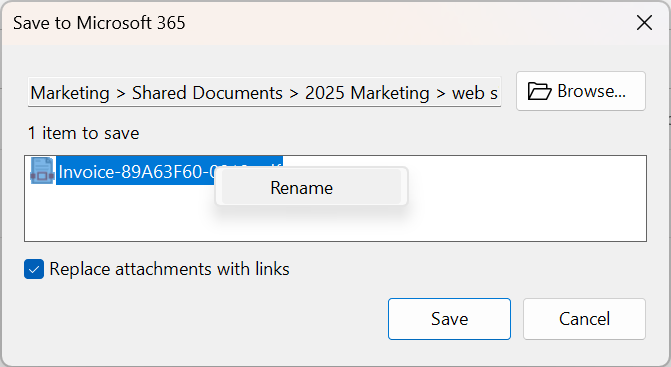
You can rename the attachment when saving with the Save to Microsoft 365 dialog. (Not available with drag and drop.)
Replace attachments with links
To avoid sending large files and to keep one authoritative copy in SharePoint or Teams, you can replace attachments with links.
- Save your attachments with the Save Attachments button.
- In the Save to Microsoft 365 dialog, check the Replace attachments with links checkbox.
When the file name already exists
If you try to save an attachment that was previously saved, you are asked whether to replace the existing file, save it as a new version, or rename the new file. To learn more, read Replacing existing documents.
Set required properties
If the destination location has required properties, the property editor automatically opens and lets you fill in the required properties for the attachments.
Availability of sent links
When using the Replace attachments with links feature, make sure that:
- The email recipients have access to the SharePoint or Teams location where the attachments are saved. If they cannot access the location, Outlook notifies you when you send the email.
- If you save to a library that requires check-out, the document is unavailable until it is checked in. harmon.ie can prompt you to check the attachments in. To learn more, read Uploading documents to SharePoint.
