
 harmon.ie Classic
 Finding content in SharePoint, Teams, and OneDrive
harmon.ie Classic helps you be productive by reducing the time it takes to find content in SharePoint, Teams, or OneDrive. harmon.ie displays all content in a single location, and suggests advanced search options.
Use the harmon.ie sidebar to find locations, documents and emails saved to SharePoint, Teams, or OneDrive, using one or more of the following methods:
- Navigate the SharePoint, Teams, and OneDrive locations.
- Direct navigation to a SharePoint link.
- Use the navigation history to quickly navigate back and forth between visited locations.
- Go to a favorite location.
- View Recent documents and locations.
- Search for content in SharePoint, Teams, or OneDrive.
- Select a SharePoint or harmon.ie view, to view documents associated with it.
- View your OneDrive, including documents Shared With Me.
- Filter the document list by tags.
- Filter the document list by columns.
- Sort the SharePoint documents by any column, ascending or descending.
- View recently updated/all items.
- Refresh the list to view changes made on the SharePoint server.
How to view recently updated/all items
- By default, harmon.ie displays the most recently updated items.
- If a view is selected with Group By settings, the groups containing the most recently updated items are retrieved.
- You can ask harmon.ie to show all items, or to show more items.
- This feature can be enabled or disabled, and the number of items that are retrieved at a time can be configured.
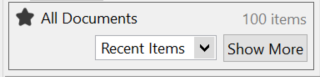
To view recently updated items
In the status panel at the bottom, click the drop-down list and select Recent Items.
- By default, harmon.ie shows the view’s Item Limit if such is defined. If not, the 400 most recently updated items are shown. This number can be configured.
- The drop-down list is enabled only if the number of items in the library exceeds the configured number. Otherwise, all items are shown.
To view more recent items
Click the Show More button in the status panel at the bottom.
- The newly added items are highlighted in yellow.
- The Show More button is enabled as long as there are more items to retrieve.
- If a view is selected with Group By settings, the newly retrieved items inside an open group are highlighted. If a new group is retrieved, or the group is closed, and now contains new items, the group itself is highlighted.
To view all items
In the status panel at the bottom, click the drop-down list and select All Items.
How to navigate to a SharePoint link
To open a SharePoint location or document for which you have a URL:
In an email message:
- Right-click the link or the Open button (in messages informing you that a document was shared with you) and select Open in harmon.ie.
- If the URL contains a SharePoint location, harmon.ie navigates to this location. If the URL contains a document, harmon.ie navigates to the SharePoint location and highlights the document for you. If the SharePoint site is not yet registered, harmon.ie suggests adding it to your registered sites list. Once registered, harmon.ie navigates to the SharePoint location and highlights the document.
– or –
In any application:
- Copy the URL to the clipboard.
- Press Ctrl+F or click the Search icon (
 ) in the navigation/search omnibox. Alternatively, click an empty space inside the omnibox.
 - Type or paste the SharePoint location or document’s full URL in the location selector, and press Enter.

- If the URL contains a SharePoint location, harmon.ie navigates to this location. If the URL contains a document, harmon.ie navigates to the SharePoint location and highlights the document for you. If the SharePoint site is not yet registered, harmon.ie suggests adding it to your registered sites list. Once registered, harmon.ie navigates to the SharePoint location and highlights the document.
 ) in the navigation/search omnibox. Alternatively, click an empty space inside the omnibox.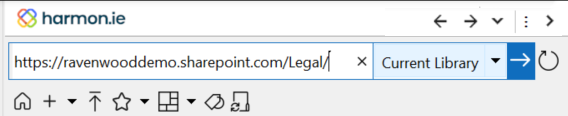
How to filter the documents by tags
This feature applies to 2010 or later.
This option is only available if the library has been configured to include Enterprise Keywords or Managed Metadata columns (see Overview of managed metadata in SharePoint).
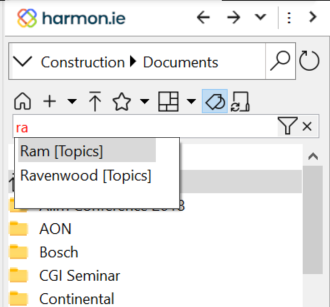
- Click the Filter by Tags icon () in the sidebar and start typing a term in the Tags Filter bar. All the terms that begin with the characters you type are displayed, including both managed terms and enterprise keywords. The term set in which the term exists is displayed in brackets.

- Select a term from the suggested list.
- Select the Apply Filter icon ().
- The matching documents are displayed in the sidebar panel. The status panel at the bottom shows the term you filtered, and how many documents match this term.
 ) in the sidebar and start typing a term in the Tags Filter bar. All the terms that begin with the characters you type are displayed, including both managed terms and enterprise keywords. The term set in which the term exists is displayed in brackets.
 ).
).
To close the filter and view all documents, click the Close Filter icon ( ).
).
How to filter the document list by columns
This option is available for column types: Enterprise Keywords, Managed Metadata, Choice, Lookup, Yes/No, Single line of text, Person or Group, Date and Time, File Type, and File Size.
- Right-click a column header of one of the types mentioned above and select Filter <column name> ().
- Select the values by which you want to filter the column, and click OK.
harmon.ie filters the current list to show only items that include the selected values. The Status Pane shows Filtered x out of y items.
- You can filter the list by more than one column, and sort any column.
- The icon next to a filtered column name indicates if it is filtered (), filtered and sorted ascending (), or filtered and sorted descending ().
- You can save a filtered list as a personal view in the current document library to quickly navigate to it again.
 ), or filtered and sorted descending (
 ).
).To clear a filtered column
Right-click the filtered column header and select Clear Filter ( ).
).
To reset all columns to their initial state
Right-click any column header and select Reset All Filters (). Any filtered column will be cleared.
How to sort
Sort the list of SharePoint items in the current location by any visible column header, such as Name, Modified By, or Rating, by following one of these methods:
- Click any column header to sort it in ascending order. Clicking an already sorted column header, reverses the sorting order.
- Right-click any column header and select Sort Ascending () or Sort Descending (). Note that it is possible to sort a filtered column.
- Select Sort By from the document list’s context menu, when no SharePoint item is selected, and then select the column name.
How to refresh the document list
- Click the Refresh icon () in the document list to reload the document list and to view changes made to the SharePoint location and its server settings.
- Click Refresh icon () in the All Locations view to refresh the list of SharePoint sites provisioned to you by your administrator.
- You can also refresh the document list by using the F5 keyboard shortcut.
 ) in the document list to reload the document list and to view changes made to the SharePoint location and its server settings.