harmon.ie Classic
 Favorite locations
Define favorites in harmon.ie Classic to quickly navigate to SharePoint, Teams, or OneDrive locations you frequently work with. harmon.ie favorites also help you automatically upload emails SharePoint, Teams, or OneDrive.
- ADD: You can add your favorite SharePoint, Teams, and OneDrive locations to your favorites list, making it easy to navigate to them.
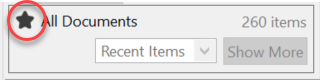
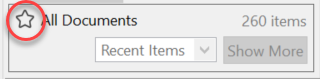
A full star in the sidebar’s status pane indicates that the current location is in your favorites list; an empty star indicates that it is not. Click the star button in the status pane to quickly add or remove a location from the favorites list.

- NAVIGATE: Navigate to your favorites locations from All Locations > Favorites, or from the Favorites icon (
 ).
). - ORGANIZE: Organize your favorite locations in folders.
- AUTOMATIC UPLOAD: Connect a favorite location to an Outlook folder. Each email saved to this Outlook folder will automatically be uploaded to your favorite Microsoft 365 location.
- OFFLINE: When you add a location to the favorites, you can also save the location offline.
- OFFICE: harmon.ie adds your favorite locations to Office Open / Save As dialogs. You can find your favorites under Browse > Microsoft Word > harmon.ie favorites.
Which locations can be added to the favorites list?
You can add these types of locations to the favorites list:
- Sites
- Document libraries
- Folders
- Teams
- Lists (Items, Tasks, Contacts, Issues, Announcements, Links)
- A selected view of a SharePoint location/list.
- A location/list filtered by tags.
How to add a location to your favorites list
There are a couple of ways to add a location to the favorites list:
- In All Locations view, right-click the location and select Add to Favorites.

- Navigate to the location, click the arrow next to the Favorites icon () and select Add to Favorites.

- Navigate to the location, and then click the empty star in the status pane.

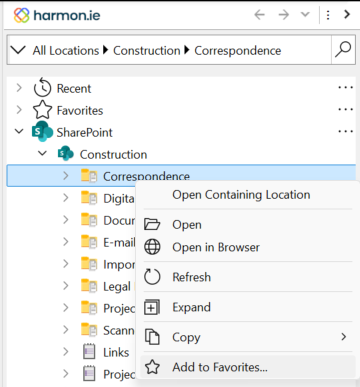
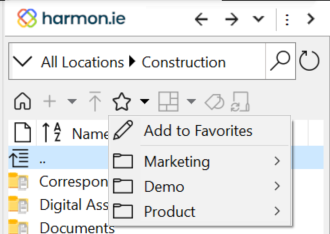
Now follow these steps:
- In the Add Favorite dialog, enter a Name for the new favorite location, or accept the breadcrumbs as the name.
- Optionally (for document libraries, lists and folders only):
- Check Make this favorite available offline to save this location to your computer for offline access. This option launches the OneDrive for Business sync client, which prompts you to sync the library. Click Sync Now. This option is available for document libraries. If selected for a folder, the whole document library is synchronized.
- Connect favorite to an Outlook folder by checking Connect to an Outlook folder for continuous migration. Select one of the following:
- Create a new connected folder. Optionally, edit folder name. The new folder will be created under the harmon.ie Outlook folder.
- Connect an existing folder. Click … to select the folder from your Outlook folder list.
Each email saved to the Outlook folder will be automatically uploaded to this favorite location.
- Click OK.
How to navigate to a favorite location
Select All Locations > Favorites to show all your favorites as a list, then double-click a favorite to navigate to it.
– or –
Navigate to the location, and then click the arrow next to the Favorites icon ( ) and select the name of the favorite location you want to navigate to.
How to edit a favorite location
There are a couple of ways to remove a location from the favorites list:
- Expand Favorites in All Locations view. Then Right-click a location and select Edit.
- Right-click the location in any group of All Locations and select Edit Favorite.
- Navigate to the favorite location. Click the arrow next to the Favorites button and select Edit.
Now you can rename the location, or change any of the favorite options.
How to remove a location from your favorites list
There are a couple of ways to remove a location from the favorites list:
- Expand Favorites in All Locations view. Then Right-click a location and select EdRemovet.
- Right-click the location in any group of All Locations and select Remove from Favorites.
- Navigate to the favorite location. Click the arrow next to the Favorites button and select Remove.
- Navigate to the favorite location, and then click the full star in the status pane to remove the location from the favorites list.
How to organize your favorites locations in folders
You can organize your favorite list in folders, and set the order of the favorites.
To organize your favorites in folders
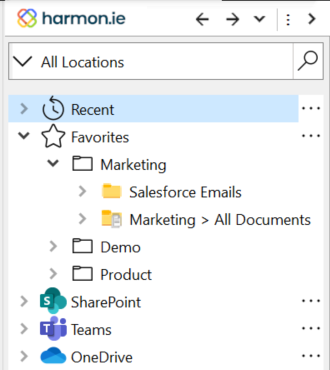
- Go to All Locations, click More (
 ) next to Favorites, and select New Folder.
 - Name the folder and then click OK.
- To move a favorite location or another folder into this folder, right click the location and select Move.
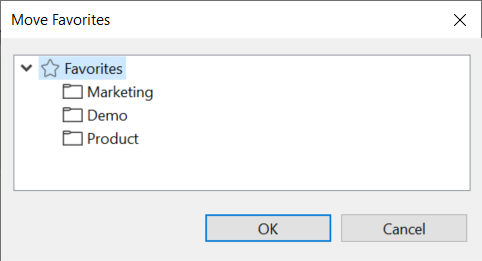
- The Move Favorites dialog opens. Select the folder to which you want to move the location and click OK.
To remove a folder from the favorites
- Go to All Locations and expand Favorites.
- Right-click a folder and select Remove. This removes the folder. The underlying locations are removed from the favorites list.
To move a favorite location
You can move a favorite location to the Favorites root or to another folder:
- Go to All Locations and expand Favorites.
- Right-click a folder and select Move.
- Select a folder from the list to move to that folder, or Favorites to move the location to the favorites root.
To set the order of your favorites
Go to All Locations, click More ( ) next to Favorites, and select Organize Favorites.
The Organize Favorites dialog opens:
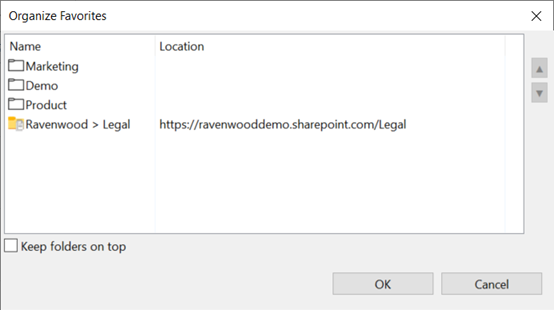
You can perform the following actions in the Organize Favorites dialog:
- Click the Name header to sort the favorites list by name. Click again to reverse the sort order.
- Select a favorite location and click the up / down arrows to move it up or down the favorites list.
- Check Keep folders on top to always view your favorite folders first.
What other SharePoint locations are added to your favorites list?
Apart from the locations you add to the favorites list, when a social server is configured, harmon.ie automatically tries to add more document libraries to your favorites list:
- When working with SharePoint 2013 or later, harmon.ie adds the OneDrive Documents library and the Shared with Everyone folder to your favorites list.
- harmon.ie adds the document libraries defined via the SharePoint ribbon button Connect to Office to your favorites list.
- Links defined in the Document Libraries group of My Links are added to your favorites list.
Document libraries added to the favorites from My Links are indicated in the favorites list with a special icon ().
When you first navigate to a favorite location added from My Links, you are prompted to add the location as a harmon.ie favorite. If the site of this location was not registered yet, you are first prompted to add the site.
 ).
).How to share favorites and offline locations between harmon.ie clients
A social server must be configured for this feature to work.
harmon.ie shares your favorite and offline locations with all your harmon.ie clients.