New harmon.ie
 Deploy New harmon.ie Outlook add-in: Step-by-step Admin Guide
This guide explains how to deploy New harmon.ie Outlook add-in via Microsoft 365 Admin Center.
- Grant app consent.
- Deploy New harmon.ie Outlook add-in to users.
- Configure New harmon.ie with custom options (optional).
1. Grant app consent
New harmon.ie requires consent to connect users to their Microsoft 365 locations.
To grant consent to the whole organization:
- Click the consent link.
- Sign in with Global Admin credentials.
- Check the box labeled Consent on behalf of your organization and click Accept.
2. Deploy New harmon.ie to users
A. Deploy New harmon.ie for Outlook
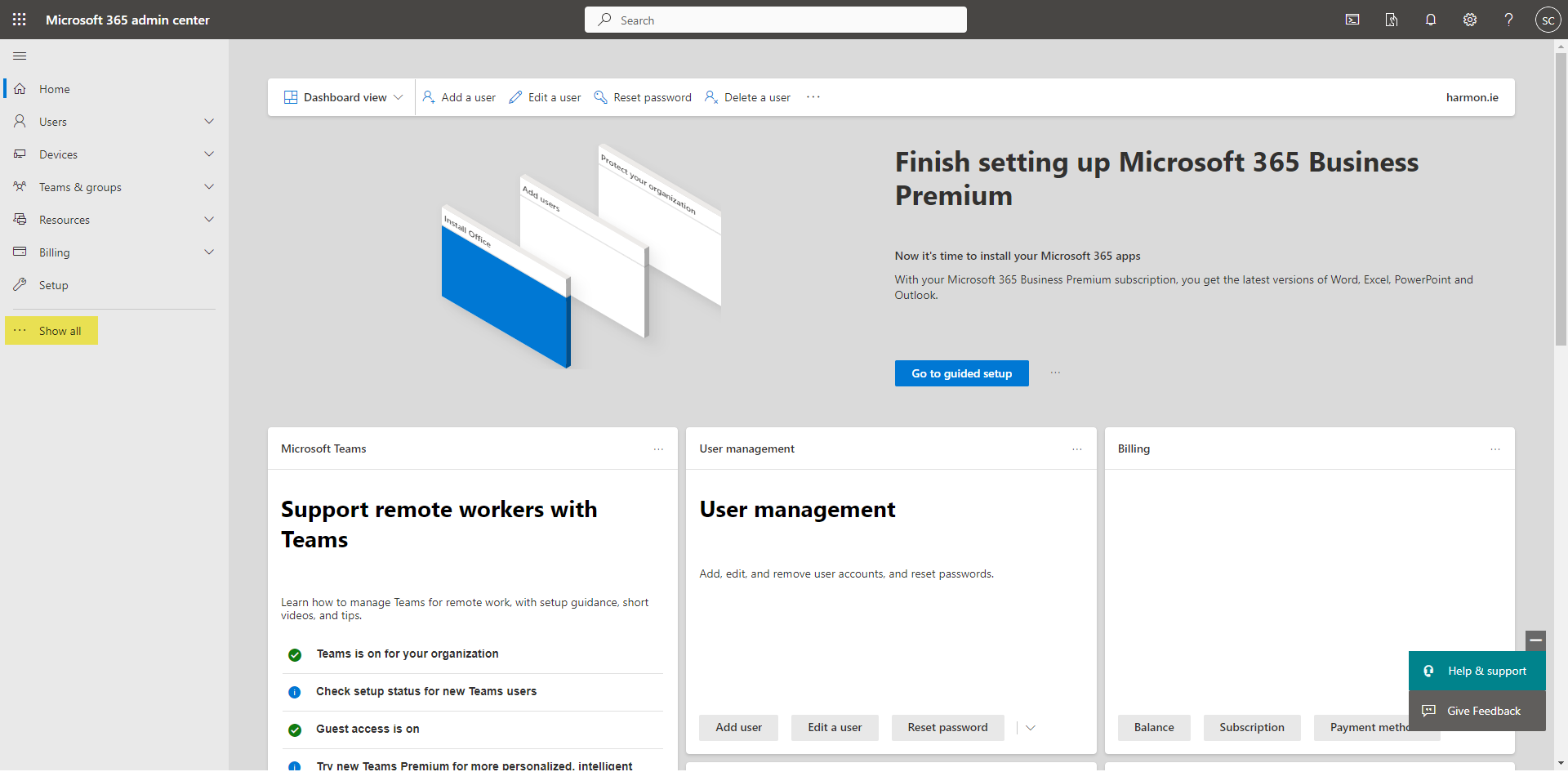
- Navigate to Microsoft 365 Admin Center.
- Click Show all.

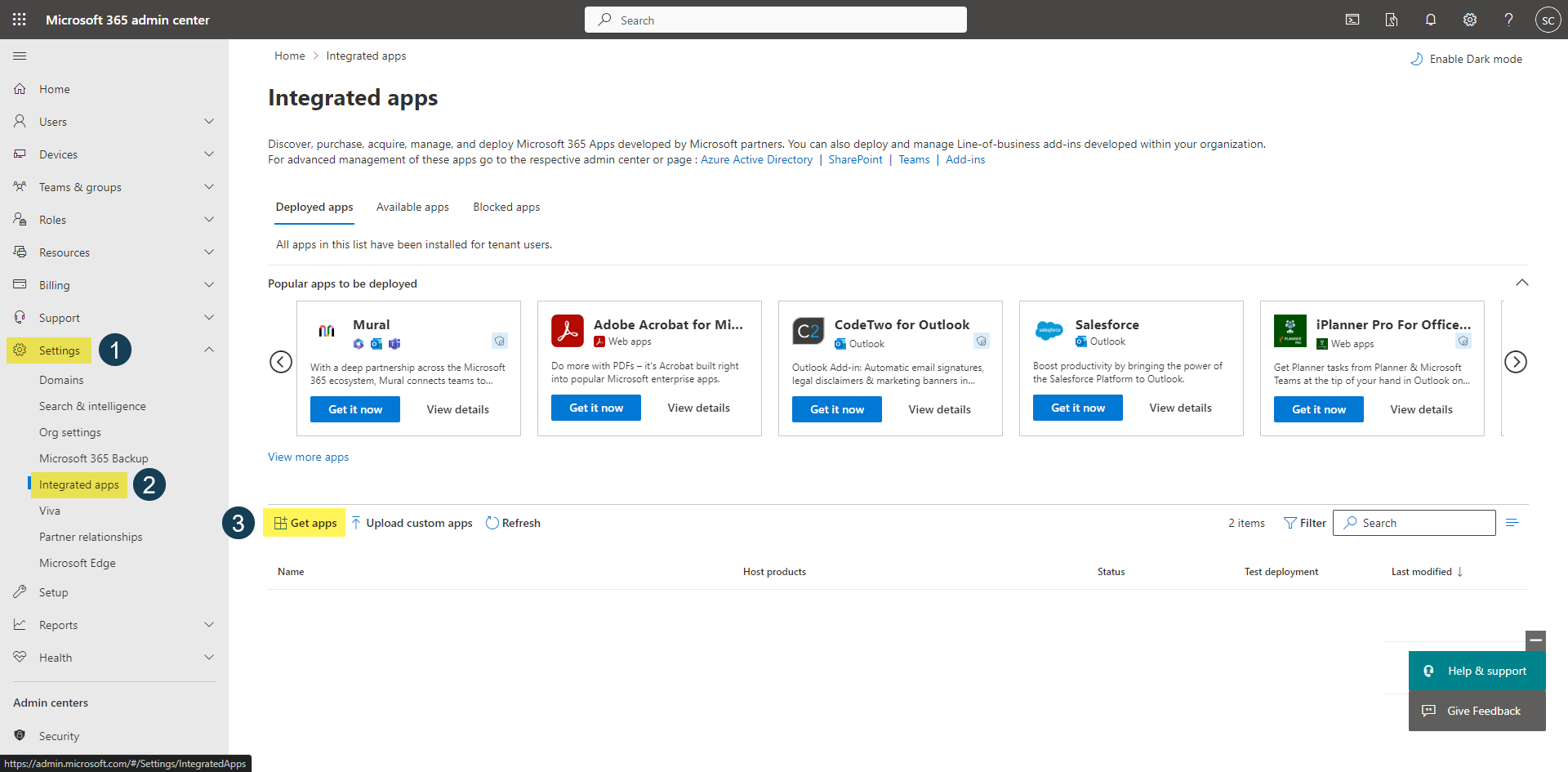
- Click Settings > Integrated apps.
- Click Get apps.
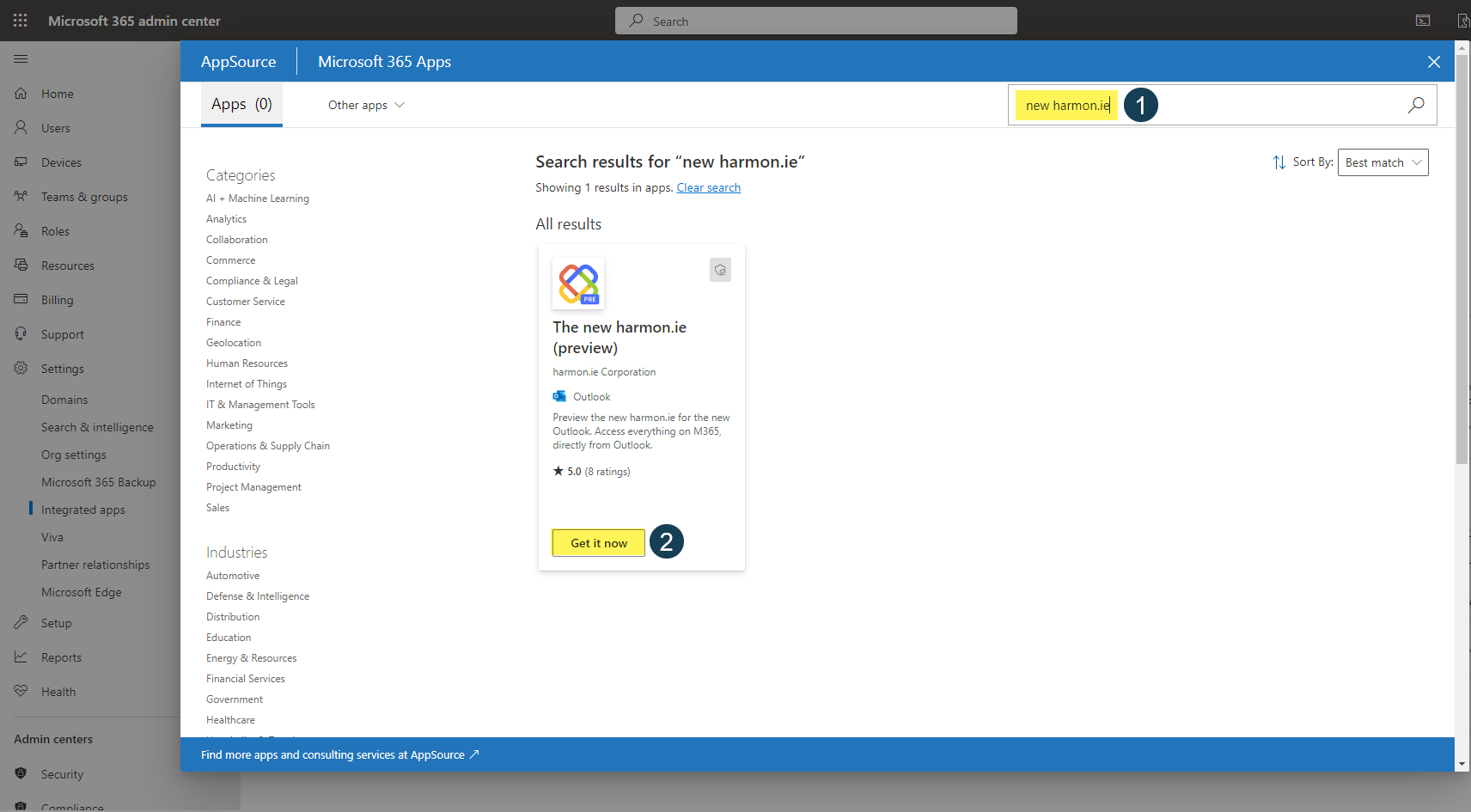
- Search for New harmon.ie.
- Click Get it now.

- In the confirmation dialog, click Get it now.
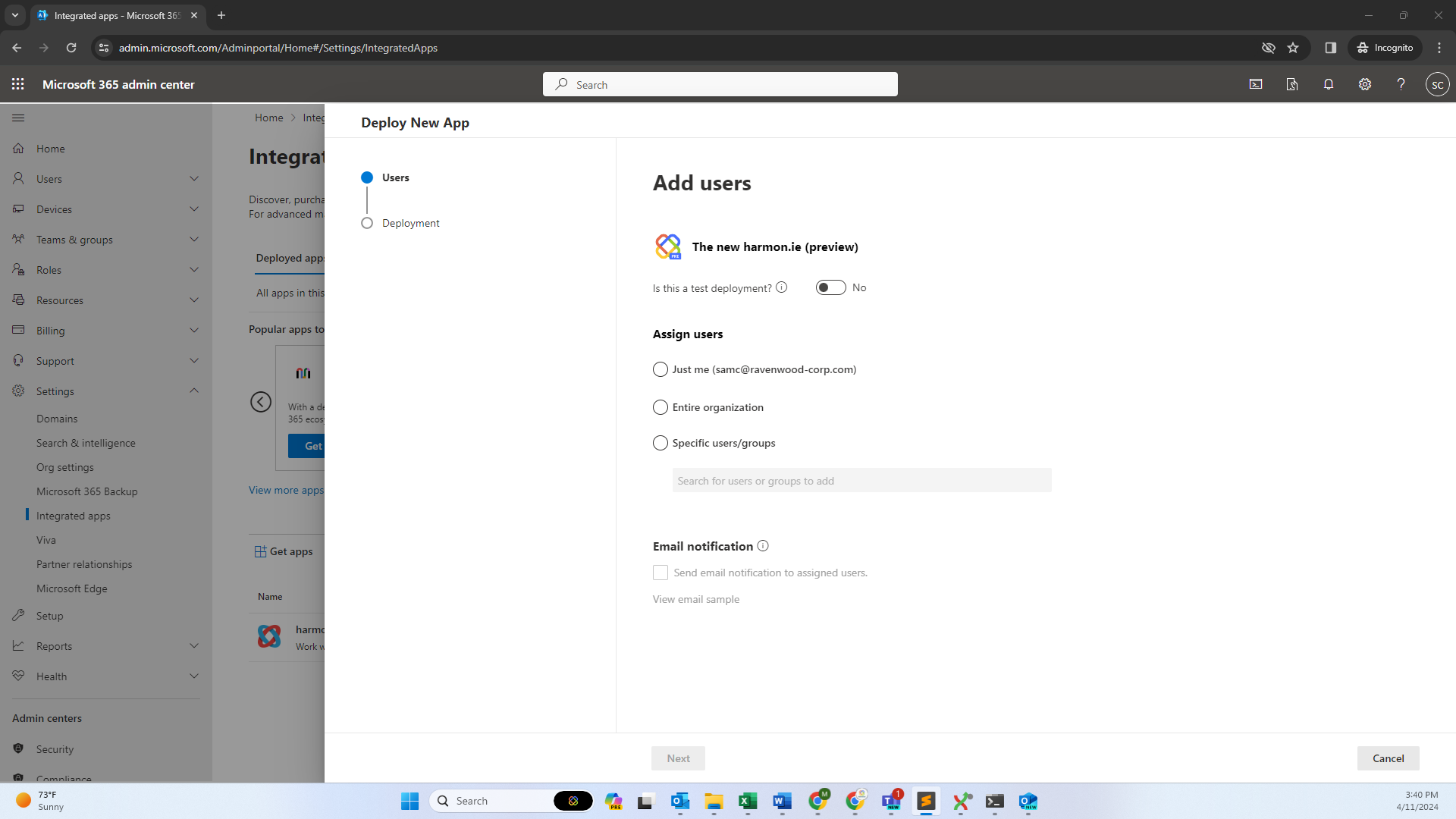
- Under Add users, select the users you want to deploy New harmon.ie to, and then click Next.

- Under Accept permissions requests, click Next > Finish deployment.
- Click Done.
Read Deploy add-ins in the Microsoft 365 Admin Center for more information.
3. Configure New harmon.ie with custom options (optional)
You can centrally manage user-facing options for all users. This includes:
- Managing Microsoft 365 apps
- Defining custom email header mapping
- Configuring the file name of emails saved to Microsoft 365
- Setting other user options.
Follow these steps:
- (Optional) Create a subsite called harmon.ie Admin.
- Create a document library called harmon.ie Files and set access permissions.
- Define harmon.ie Admins.
Where to create the “harmon.ie Files” library
The harmon.ie Files library should be created in one of the following locations:
- Under the Root Site – Recommended for a simple, centralized setup. Requires that all users can access the root site.
- Under a “harmon.ie Admin” Subsite – Choose this option if root site access is restricted for some users.
1. (Optional) Create a “harmon.ie Admin” subsite:
If you don’t want or can’t create the harmon.ie Files library in the root site, you may create it under a subsite.
a. Create subsite:
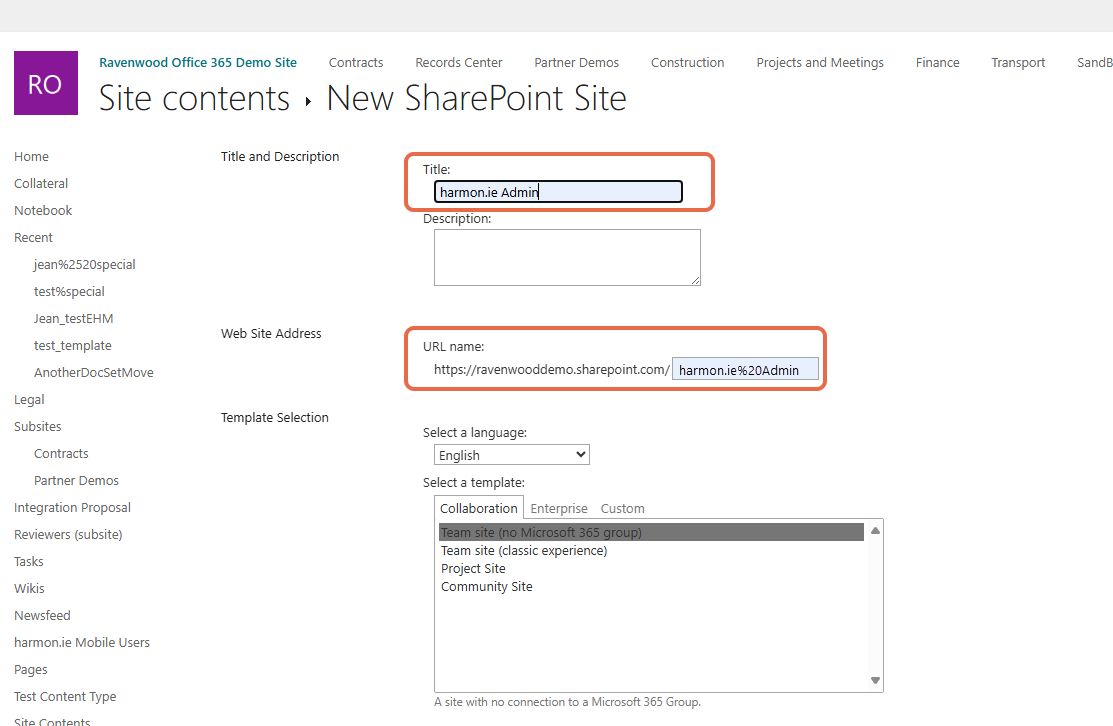
- In the root site, go to Settings > Site contents > New > Subsite.
- Set Title to harmon.ie Admin. The name cannot be changed.
- Set URL name to harmon.ie Admin. The URL name cannot be changed.
b. Set permissions:
- Create or use an existing SharePoint group to specify the harmon.ie Admins.
- Use unique permissions for the subsite and remove all users except harmon.ie Admins and site owners.
c. (Recommended) Hide the “harmon.ie Admin” subsite:
- Remove it from the navigation bar.
- Exclude it from search indexing:
- Go to Site settings > Search and Offline Availability.
- Set Allow this site to appear in search results? to No.
2. Create the “harmon.ie Files” document library
a. Create document library:
- Navigate to the root site or the subsite created above.
- Click Settings > Site contents.
- Click New > Document library.
- Name the library harmon.ie Files. The name cannot be changed.
- Ensure the Show in navigation option is unchecked and click Create.
b. Set permissions:
- Remove existing permissions: Remove all existing user groups except for the Site owners group. This ensures that only the specified administrators have access to the library.
- Grant read-only access for all users: Add the group Everyone except external users with Read permissions.
- Grant edit access for harmon.ie Admins: Create or use an existing SharePoint group to specify the harmon.ie Admins. Add this group with Edit permissions.
c. (Recommended) Hide the harmon.ie Files library:
- Hide from navigation:
- Go to Settings > Site settings > Navigation Elements.
- Uncheck Display the Quick Launch or manually remove the library link from the navigation bar.
- Exclude from search indexing:
- Go to Settings > Library settings.
- Under General Settings, click Advanced settings.
- Set Allow items from this document library to appear in search results? to No.
Based on the location where you created the “harmon.ie Files” document library, its URL should follow one of these formats:
- https://<your-tenant-prefix>.sharepoint.com/harmonie%20Files
- https://<your-tenant-prefix>.sharepoint.com/harmon.ie%20Admin/harmonie%20Files
How to add or remove an administrator for New harmon.ie
To allow a user to access the Admin tab in New harmon.ie settings, add them to the harmon.ie Admins group, which must have Edit permissions in the harmon.ie Files document library.
To remove the Admin tab for a user, remove this user from the harmon.ie Admins group.