harmon.ie Classic
 Saving content to SharePoint, Teams, or OneDrive
harmon.ie Classic lets you save emails, attachments, Outlook items and folders, and documents to SharePoint, Teams, or OneDrive:
- Use drag and drop to save emails, attachments, documents, and folders to SharePoint, Teams, or OneDrive.
- Use the Save Message, Save on Send, and Save Draft buttons to save emails.
- Use the Save Attachments button on the harmon.ie ribbon to save email attachments.
- Upload documents and folders with harmon.ie’s Upload button.
- Automatically migrate emails to SharePoint, Teams, or OneDrive.
How to drag and drop items to SharePoint, Teams, or OneDrive
- Find the location where you want to save the items.
- Drag and drop documents, folders, email messages, attachments, or Outlook folders from your computer or Outlook to one of the following targets in the harmon.ie sidebar:
- A SharePoint site, document library, or folder to save them in that location.
- An existing SharePoint, Teams, or OneDrive document to replace it with the file you are uploading (or add a new version).
- A SharePoint list item to save the files as attachments to the item.
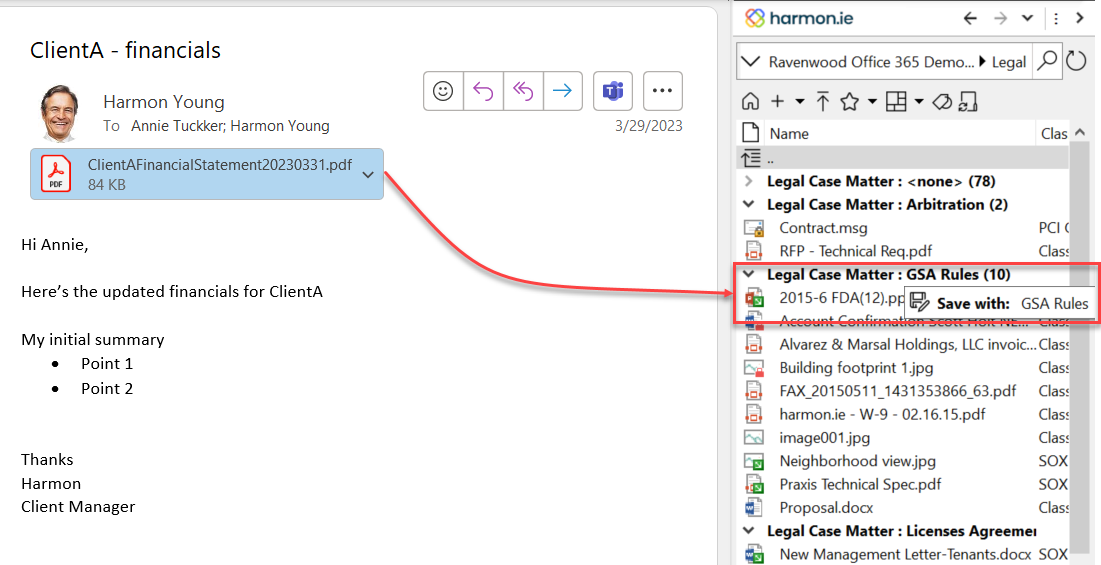
- A SharePoint group header to save the item and associate it with that group.
- A Teams location or folder.
If you drag an item to a Teams location without specifying the folder, it is saved in the Teams location’s default folder.
- A OneDrive folder.
- Monitor the drag-and-drop process.
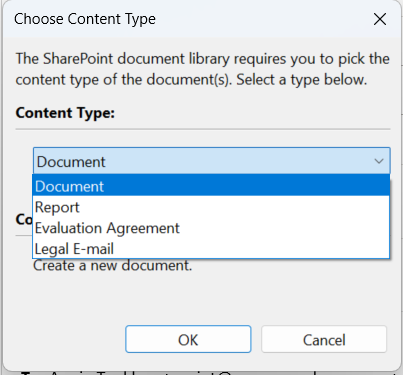
- If prompted, select a content type.
- If the Properties window opens, fill in the required properties, and then click Save.
- If prompted, check in the document to make it available to all users.
- Dragging items from Exchange public folders can be slow because each item is downloaded from the server, and bandwidth is often limited.
- Due to an Outlook limitation, it is not possible to save folders that include characters which do not match your machine locale.
To monitor and stop the save process
While items are being saved, a progress bar appears at the bottom of the harmon.ie sidebar. It shows the name of the current item and the overall status. To stop the process, click the Cancel Operation icon ( ).
).

To select a content type
When saving to a library with multiple content types, items use the library’s default content type unless you instruct harmon.ie to prompt you to select a content type.
To set document properties
In the following cases, saved documents are left checked out (they are not yet visible to other users).
- The library has required properties that don’t have a default value.
- Column validation is defined and your values fail validation.
- You configured the Properties window to open on every upload.
harmon.ie opens the Properties window. Complete the required properties or make sure that values are valid and click Save.
If you try to close the Properties window without completing required metadata, harmon.ie warns you that the documents will remain checked out. Select:
- Yes: Close the window and leave the documents checked out (hidden from other users).
- No: Return to the Properties window and complete the required properties.
- Do not warn me again: Don’t show this warning in the future.
- You can change this behavior anytime in Settings.
To check in saved documents
If a library requires check-out before editing, saved documents are checked out and harmon.ie prompts you to check them in. Select:
- Yes: Check in all saved documents so they become visible to other users.
- No: Leave them checked out and hidden from other users.
- Remember my choice: Apply your answer automatically to future saves.
- You can change this prompt anytime in Settings.
- The Check In setting is global for all SharePoint sites.
- This setting also applies to scenarios where documents would be left checked out after editing document metadata.
How to add new versions or replace existing documents
Save the file again to update the existing document. What happens depends on the library:
Libraries with versioning
- Upload the file (Upload icon or drag and drop).
- When prompted, choose Add as a new version to existing documents to update the document while preserving metadata and version history. Clear the checkbox to rename the uploaded file (a running number is appended to the name).
- Click OK.
- To skip one file when uploading multiple files, click Skip. To apply the same choice to all files, check Apply to All.
Alternative: Right-click the document and select Add New Version, then browse to the file.
Libraries without versioning
- Upload the file (Upload icon or drag and drop).
- When prompted, choose Overwrite existing documents to replace the file. Clear the checkbox to rename the new file (a running number is appended).
- Click OK.
- To skip one file when uploading multiple files, click Skip. To apply the same choice to all files, check Apply to All.
Replace or add a version when the file name changed
If someone returns an updated file with a different name (or a newer Office format), you can keep the original name and update the existing document:
Libraries with versioning
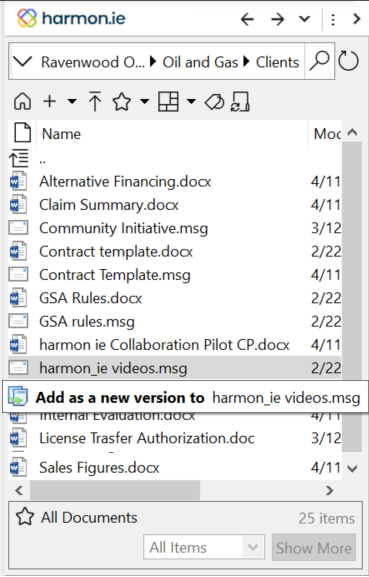
- Drag the new file onto the existing document and hold for 2 seconds until you see Add as a new version to <document name>.

- Drop the file to add it as a new version. The file is renamed to the existing document’s name.
Alternative: Right-click the document and select Add New Version, then choose the file.
Libraries without versioning
- Drag the new file onto the existing document and hold for 2 seconds until you see Overwrite <document name>.
- Drop the file, then click OK to confirm overwrite.
- You can replace a document using this method, if both the existing and new documents have the same file type.
- The feature of replacing a document with a document of a newer Office format (for example .docx instead of .doc) must be enabled by your administrator.
- When upgrading the Office version, harmon.ie adds a comment to the document indicating the extension change.
- To restore a version to its old extension, follow the directions under restoring an old version.
How to save to a grouped location
When Group By is defined for a view, harmon.ie groups the items by category.
When you drag and drop items onto the group header, the items are uploaded to the location and the header value is assigned to the property.
Example: To assign Classification to Classified, drag the item and drop it on the Classification : Classified group header.