Put Email Saving on Autopilot: First Look at harmon.ie’s New Automation
Webinar highlights:
- See New harmon.ie’s new email automation (now in beta): automatic conversation saving, suggested rules that learn from how you save, and shared saves that show what’s already been captured.
- Watch a live demo of automation at work, capturing whole email conversations to SharePoint automatically, with every reply and forward following along.
- Learn why automatic capture matters: complete, consistently-filed records in Microsoft 365 that strengthen compliance and give Microsoft Copilot the full picture.
- Get a look at what’s next: more automation rules (subject line, keywords, categories), bulk upload from Outlook folders, and Copilot suggesting what to save and where.
Webinar Transcript
Maya: Hello everyone. Welcome. It's great to have you all here. Thank you so much for joining us for today's webinar, Put Email Saving on Autopilot. Today is all about the first look at harmon.ie's new automation, and it's one we've been really looking forward to showing you. So just a couple of quick notes before we get started. Please feel free to drop your questions into the chat anytime during the session. We'll get to as many as we can during the Q&A at the end. And if we don't reach yours, someone from the harmon.ie team will follow up with you by email. We're also recording today's session, so keep an eye on your inbox. We'll send the link your way in the next couple of days. All right, with that, I'm excited to introduce today's speaker, Ron Johnsen, VP of Customer Success at harmon.ie. Ron works closely with our customers every day to help them succeed with harmon.ie and email management.
And today he'll give us a live look at harmon.ie's new email automation, show where it's headed next, and share how you can join the beta. Ron, over to you.
Welcome and what we'll cover
Ron: Thanks Maya, and welcome everyone. And as Maya mentioned, this is Ron Johnsen. I lead our customer success team here at harmon.ie. And over the years I've had the opportunity to work with our customers and partners around the world across many different industries: financial services, legal, government, healthcare, manufacturing. And one thing I've learned is that regardless of the industry, organizations are all trying to solve the same problem. How do we consistently capture and preserve important business knowledge that is created every day in email? That's exactly what today's webinar is about. We're excited to show you the progress our development team has made over the past few months as we continue moving toward our vision of intelligent email management. For those of you who joined us in our previous webinar, you'll remember we focused on two key challenges. First, the first one being that organizations struggle to implement consistent email management.
Everyone agrees important emails should be saved, but relying on users to decide what to save, where to save it, and to remember to save every reply simply isn't sustainable. The second thing we covered, we discussed why this matters even more in an era of AI. Organizations are investing heavily in Microsoft Copilot and other AI technologies, but AI can only work with the information it can access. When important business conversations remain in personal inboxes instead of being part of your organization's knowledge base, it results in incomplete context, incomplete records, and ultimately incomplete AI answers. The reality is that people aren't the problem, manual processes are. Even with the best intentions, we are asked to make dozens of filing decisions daily, and this is simply not a process that scales consistently. So today we'll start with a brief recap of the business challenges and then spend most of our time where I think you'll find the greatest value: showing you the latest automation capabilities we've built, what's available today in beta, and where we're headed next.
So let's jump in. And for all you World Cup fans, it was a bit disappointing last night, but we'll try to get you out of here before the Argentina game starts today.
Everyone agrees important emails should be saved, but relying on users to decide what to save, where to save it, and to remember to save every reply simply isn't sustainable. The second thing we covered, we discussed why this matters even more in an era of AI. Organizations are investing heavily in Microsoft Copilot and other AI technologies, but AI can only work with the information it can access. When important business conversations remain in personal inboxes instead of being part of your organization's knowledge base, it results in incomplete context, incomplete records, and ultimately incomplete AI answers. The reality is that people aren't the problem, manual processes are. Even with the best intentions, we are asked to make dozens of filing decisions daily, and this is simply not a process that scales consistently. So today we'll start with a brief recap of the business challenges and then spend most of our time where I think you'll find the greatest value: showing you the latest automation capabilities we've built, what's available today in beta, and where we're headed next.
So let's jump in. And for all you World Cup fans, it was a bit disappointing last night, but we'll try to get you out of here before the Argentina game starts today.
Ron: So let's do a quick recap on some of the risk and a quick review of the real business problems we're trying to solve. Every organization relies on email. It's where legal advice is exchanged, where client commitments are negotiated, where product decisions are made, where project changes are approved, and where countless business decisions are documented every day. The challenge is that those conversations usually remain in personal Outlook inboxes. They never become part of your organization's shared knowledge. And now think about a couple of scenarios: when somebody leaves the company, or an employee needs to understand why a decision was made six months ago, or legal needs the complete record for a matter, or a project team is trying to understand how customer requirements evolved. This is something that we do all the time, and I'm sure I'm guilty of this, in that I send one of your requests into our support team or our product team and I forget to preserve the email or share the email.
So suddenly critical information is missing, you don't have a full picture. The consequences aren't technical. You simply end up with an incomplete project history. You have compliance gaps, financial risk, weaker business continuity, and increasingly incomplete context from Microsoft Copilot and other AI tools. And the reality is the real risk isn't simply that the emails weren't saved. The real risk is incomplete, inconsistent organizational knowledge. Okay. Maya, let's take our first survey.
Maya: Okay. So I've shared the first poll. Please vote. How does your team save important emails today? Honestly, we mostly don't. Kept in Outlook folders or a shared mailbox. I download manually, then upload to SharePoint. An automated workflow we built ourselves. Or drag and drop to SharePoint using an Outlook add-in. Let's wait a few seconds and then I'll share the results with you. Okay, I see that most of you answered, so let's see the results. Ron, can you see the poll results, or do you want me to read them?
Ron: I see. I think you can close the poll. Yeah, so let me make sure I get back here and share my screen and jump to the next slide. So basically the poll results show a little bit... I'm glad to see that a lot of you are using add-ins like harmon.ie, but a lot also still preserve those, or keep those, in Outlook folders, which is outside of the scope of that organizational knowledge we were just talking about. So I think this circles back nicely to what we're going to talk about. And regardless of how we save emails, the solution usually is, or what the organization usually promotes is, well, let's just have everyone save their important emails. Unfortunately, that's where the problem begins. For years we've asked employees to manually preserve this business knowledge. Think about the number of decisions that you're expecting business users to make every day.
First, they have to decide whether the email is important enough to save. Then they have to determine where it belongs: which team, which SharePoint site, which document library, depending on how you have your information governance and management set up, what client matter folder.
And hopefully, for our customers joining us today, as we saw from the poll, hopefully harmon.ie's helping to make this easier. And once they find out it's an important email and where to save it, we also ask additional things from our business users, and that's, we want them to classify it properly by adding important metadata. And then we ask them to remember to save every reply, every iteration on important emails, so that you have that entire conversation saved. That's asking people to make dozens, sometimes hundreds of repetitive decisions every week. And the reality is our business users are busy. They're serving customers, they're closing deals, they're managing projects, they're solving problems. They're not acting as records managers or prioritizing email triage. So emails get skipped. They get saved to the wrong locations, or different locations, or inconsistent locations. Metadata may be inconsistent. Replies are often forgotten. At the end of the day, the problem isn't the employee.
The problem is relying on a manual process for something that should happen automatically. And that's exactly where we're headed with the harmon.ie solution, which is to include automation.
Ron: Before we dive in, and as I promised we'll get to the demo here shortly, before we dive into the product, I'd like to leave one thought, and it's just to summarize our overall goal. Our goal isn't simply to make saving emails easier. Our goal in the end is to make it intelligent. And that means moving from users manually deciding what to save and where to save it and remembering every reply, to a system where important business emails are captured automatically, filed in the right place, and become part of your organization's shared knowledge. Again, driving Copilot to better answers and all. And ultimately that's what enables better compliance, stronger business continuity, and richer, more complete answers from the AI engines. Now let's take a look at where we're beginning and how we're going to make this a reality. So we intentionally started this journey by focusing on the three biggest pain points our customers consistently request, or tell us about.
Ron: And that is: automatically capturing complete conversations; repetitive processes, saving emails with common characteristics (we'll start with senders, but this also means email domains, keywords, categories that you may already have on emails); and then it's important that you can visualize this. And this is, again, we're going to dive into each of these a little bit more, but visualizing the email saved. So not only can I see in my inbox that I saved an email, but any recipient on that email knows that I've already saved it. So let's take a look at each one in a little more detail.
So from an automatic conversation saving standpoint, this is one of the top requests we've received, and especially for those out there that are using harmon.ie to manage legal matters. It's important in those types of compliance, regulatory types of industries that you have tracing or tracking of important conversations. So this feature is valuable, though, beyond the legal sense and legal matters. It's important for any important emails. We send client notifications, we send pricing discussions, delivery and schedule changes. These all need to be captured, and all the iterations on the emails, whether it's forwards or replies, should be captured automatically. And to make this simple, and you can see in the screenshot here, harmon.ie presents a simple slider when you're saving an email to basically say, track this email and save all future replies and iterations on this email. And we'll take a look at all these in a demo in a couple of slides here.
Ron: Next up is kind of intelligent, or smart, automation rules. And we tend to save emails from the same customers, same vendors, same partners over and over again to the same locations. harmon.ie simply learns from your actions and suggests creating an automation.
And the initial thought is this is some AI magic. It's not at this stage. That's coming, and we'll talk about where we're headed with AI. But in short, if you save an email from the same sender repeatedly to the same location, harmon.ie will prompt you to create an automation. And then coming soon after this will be, if you save emails from the same client or same email domain, or you save it with the same keywords, things like that. So this isn't the end. And I skipped ahead one slide, too many there.
Ron: And finally, let's take a look at the shared labels. And shared labels are what we're calling shared saves here. This is key, and probably our second most frequently requested feature. And it's one of the biggest sources of duplicate work. And that is simply that of knowing whether your colleague saved an email. And when you start to automate some of these saves, this visibility becomes even more important.
And from a personal standpoint, you can look at the labels as a great visualization showing in your inbox what emails have been saved, and which ones were saved automatically, which ones you may have saved, and which ones you may still need to review. From your colleagues' standpoint, the recipients on those emails, they save time and reduce duplicate work as the shared labels are now visible to them. These three key capabilities are kind of a foundation, or a first step, towards moving from manual email filing to intelligent automation. So before we jump into the demo, Maya, you want to run a second poll?
Maya: Yeah, just a second.
Ron: And while Maya's doing that, I'm going to...
Maya: Okay. So the second question: we would like to know, which automations would you like to see next? What's important for you? Saving by subject line or keywords. Saving outgoing emails by rule. You can select multiple answers. Save emails with specific attachments. Bulk upload from an Outlook folder. Or let Copilot decide what to save and where. Let's wait a second, and I see you are still answering. Voting. This will help us decide on the next stages of automation. Okay, let's see the results. Okay, so 63%... Oh, where did it...
Ron: Go? Oh, sorry. I...
Maya: Hit the button. Share it again.
Ron: There you go. You can share it again.
Maya: 63% are interested in saving by subject line or keywords. Yeah. And then we have 37% asking for bulk upload from an Outlook folder. Okay.
Ron: So this is great. This is great feedback. And as Maya mentioned, this is the feedback that's going to help us prioritize. And as we initiate this beta, I encourage you to engage with our teams, myself, our teams, and share your insights and all that. The good news is, what the survey shows is it aligns very well with what we have planned, and that's keywords or subject lines, keywords in the body of the email, potentially in the document using Copilot, or attachments, and then bulk uploads, and being able to move content that's important around. I know a lot of your organizations are putting email retention policies in, and as you get those email retention policies going, the first panic feeling is, all my emails are going to disappear. So how do I take that folder that I have 10 years of history with, and I need to save some of that?
So some of that bulk upload will help with that, and that self-service kind of migration type of features. So let's jump into the demo.
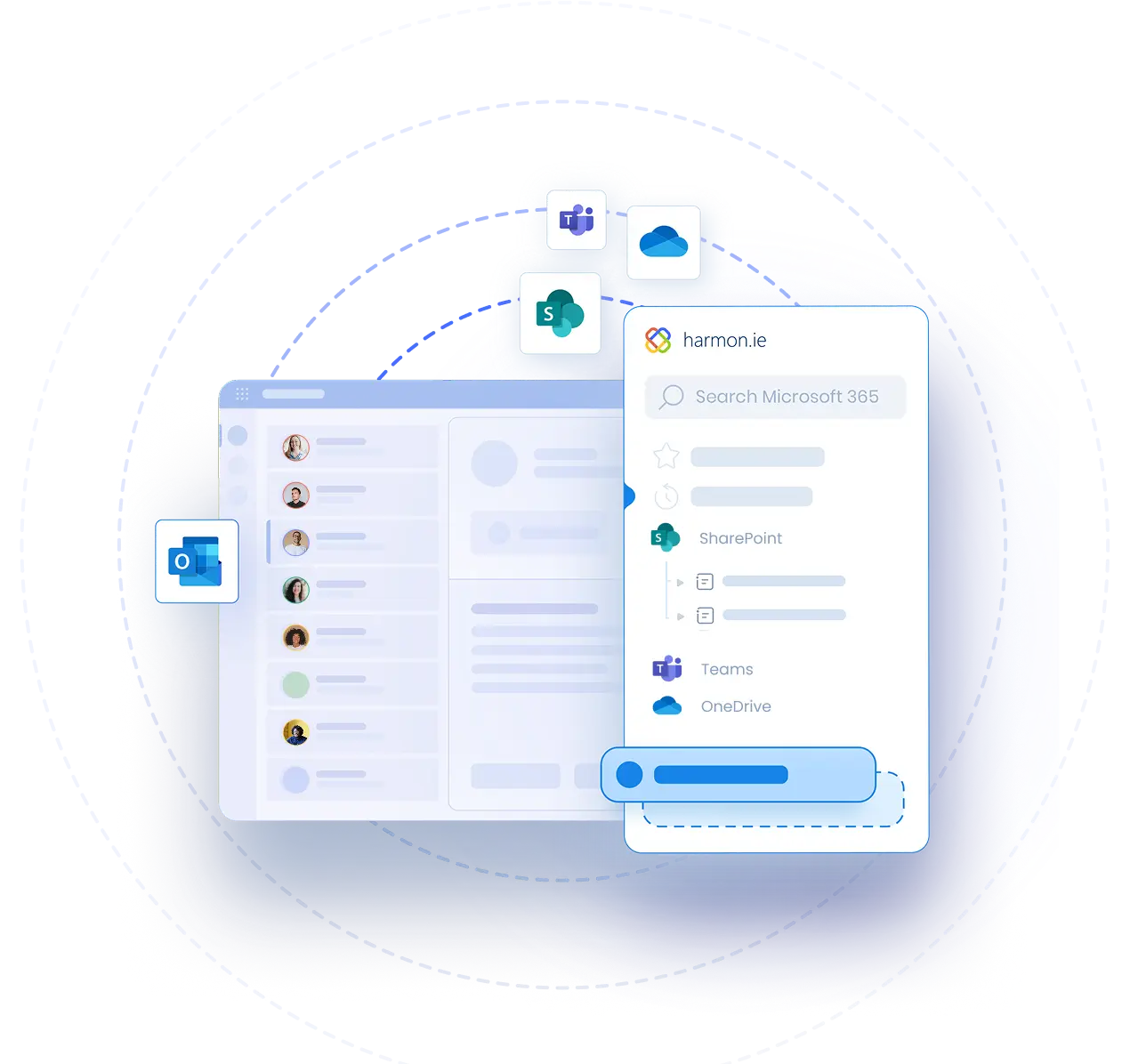
Ron: I know this is what everybody signed up to see today. So I know there's a mix of customers on the call today, and some folks that may be new to harmon.ie. So let me just give a quick overview of harmon.ie. So New harmon.ie is this sidebar that's running inside. I can pin this thing open. harmon.ie's going to give you quick access to your Microsoft 365 repositories. And this is going to be a quick overview, so if you want deeper, we can definitely set up time afterwards. But it'll give you access to your OneDrive, you get access to your SharePoint sites, you get access to Teams. And the main difference between these is simply how you go. They all connect to the underlying site collection, and we'll show the underlying site collection.
But the main difference is, if I go in the SharePoint interface, I'm going to see SharePoint sites, then I'm going to see subsites, maybe libraries, and then folders. And then as I click through, I'll see the underlying content. If I go in through the Teams interface, you're going to see Teams and then the underlying channels. And then when you double-click, you'll see the channel. You should see the channel. There we go, and the content in there. And anywhere in here that I have, and this would give us a good way to start the demo of the automation features, is anywhere there's a container, meaning a SharePoint library or a folder where I can store information, you can drag and drop or upload an email or the attachments there. So let's create our first automation here. I'm going to just navigate in. I'm just going to use a favorite instead.
Let's go into favorites.
Let's go in here. This is just a client folder. And if I want, I'm going to take this email here that I sent myself earlier and simply drag and drop it in here. That's going to upload to SharePoint. And if this is an important conversation, this is the way to create a new automation rule. So basically any forward or reply on that will be saved automatically. Now, for the sake of time, and I didn't think everybody wanted to see me create a bunch of emails and type and make a bunch of typos, I've already created a few automations and a few email streams. So you can see here, where am I? Here's a bunch of emails, a few that have already been saved. I can always come over here to the automation. This is new in harmon.ie. And basically with the beta, you'll need to click the Run now, and that's going to run the rules basically that you have defined.
And you can see I already have a running count of emails. And you'll see that all my estimated tax planning documents have been captured. So I'm going to jump out here and you can see that I have these. So that entire conversation is now saved. You can use one of the newer features in harmon.ie, a Show Preview feature for emails, and I can just simply open the email up and now I can see that entire conversation is saved in my preview window. I meant to keep it open.
Okay. There's our demo glitch for the day. Sorry. So we'll jump back into that. So that's how you create automations. So in that one, I created one where I just dragged and dropped an email in. I can save the entire conversation, and any replies or forwards I have are now uploaded. The other automation that's in the beta is the ability to take an email here. So you can see I have three or four emails from Annie, and I've saved a couple already. And as I save this one, let's see if the demo environment kept me honest. We're going to save that one first and then I'm going to go save a couple more. So let's see. Drop that in.
That's what happens when you have these automation rules; it becomes a little bit more difficult to trigger something. So you can see, on the third iteration of me saving that, I can now create a rule that says save all emails from Annie Tucker to the location. So that all future replies, forwards, anything I receive from Annie, new emails I receive from Annie, will be automatically captured there. And again, you have this new automation button that you just click on, and initially this is how you'll run these. In the future they will run, if you have Outlook open, they'll run automatically. And if you want to run them in the background with Outlook closed, you would need to have our desktop edition of New harmon.ie installed. And that would run... you can see I can get all my automations here.
They would be able to run those automations for you. Okay. I just want to make sure I captured everything I wanted to show you. The shared labels are right here. So you can see that the shared labels... I can easily go to my inbox and save that. And let's just do a quick... I'm going to just reply all to this, do something fancy like my reply, send that. And now if I go rerun this rule, just out of curiosity, I'm thinking it's going to pick that up even though it's not in my inbox. It'll pick it up out of my sent items, and you'll see that now I have 12 items saved, and that was for the estimated tax. So if I go here, there's a nice little feature here where it can jump to the location, and this will show me all my emails I saved.
And as for those, again, new to harmon.ie, we do capture on the email upload all the email header information and provide you a view so you can see it in more of an email view. But this is the conversation automatically saved for me.
Ron: Okay. I'm going to just jump back into the slides and we'll wrap things up, and maybe everybody can get to the World Cup game on time here. So before we wrap things up, let's take a look at where we're headed with this and what's coming in the next couple of updates. And again, the long-term vision here is pretty straightforward. It's moving away from manual email filing to intelligent, AI-assisted email management. And the goal with each of these releases or updates is to reduce the number of decisions employees have to make while increasing the completeness and quality of your organization's knowledge. So the next phase, or the next update we'll do, is focused on expanding the automations, making more available. Things like subject line, that you asked for in the survey, keywords in the message or the body, email categories already assigned. We're also planning to introduce, and again, this aligned very well with your feedback, that bulk upload capability, making it easier to move existing content in existing Outlook folders into your information management architecture, or into Microsoft 365.
Once those fundamental or foundational automation capabilities are in place, we're going to start introducing Copilot into the process. And harmon.ie will run alongside Copilot to help determine what is important, what should be saved, and where it belongs, and basically suggest locations. And think of Copilot as another assistant helping users to make better decisions with less effort. We're also planning, and you saw the automation control there, but we're going to expand the automation dashboard. And really, as users start to rely more on the automation to capture emails, users will need visibility into there. They'll need to be able to monitor the activity, look at what rules and what's being saved by each automation rule, and be able to manage those rules, remove them, edit them, and all that.
And when you look across our entire roadmap, there's really one theme. It's that we're trying to get closer and closer to the reality, or that vision we have, where business emails are captured automatically, they're classified automatically and consistently, and they're stored along with your documents in SharePoint and Teams. And this strengthens compliance, it improves your business continuity, and it makes Copilot more complete. Your answers, if you run prompts like "give me a risk analysis of us being late on this project, it's going to be over budget," those types of answers will be more complete if you include the important emails in that. So Maya, let's open it up for a few questions.
Q: In later phases, would there be a human in the loop - "I'm trying to save this, do you want it?" - or would it automatically file everything when enabled?
A: Today there's no human in the loop. Once you choose to save a conversation, it saves automatically. And if you've created a rule to save from a sender or domain, you'd go in to modify or manage those rules.
Q: What's the refresh rate for harmon.ie doing this automatically?
A: The desktop app runs the automation in the background - currently about once an hour, with scheduling options expected later. An admin running harmon.ie can set and control the frequency in the desktop edition (for example, every hour or two when Outlook is closed).
Q: Will you have to click Run now for each individual automation rule?
A: No - clicking Run now runs all the rules you've defined at once.
Q: When you say anyone on the team will see an email has been saved, is that anyone in the organization? If it's forwarded to someone later, will they see it was saved in the file location?
A: Yes - any recipient on the email who's in the organization. One requirement (to be documented in the FAQs and release notes): because the email is saved to a specific location, they need access to that location to see it. Without access, they won't see it.
Q: When will phase one be available?
A: It's already available - released yesterday. Join the beta and you'll immediately get instructions on how to use it. In settings, your admin can turn automations on and control the rollout: enable it for a few test users or for everyone. If the admin chooses "follow users," each user turns automations on in the advanced tab; otherwise the admin controls it.
Q: If I pay for harmon.ie now on the website, is the beta version included?
A: Yes - the beta is included, and all harmon.ie subscriptions include support, updates, and maintenance.
Q: Will this work with Classic Outlook or only New Outlook?
A: Both. It was demoed in New Outlook, but it works the same in Classic Outlook. The key requirement is running New harmon.ie, not harmon.ie Classic.
Q: Can you set up automation rules in the Outlook add-in on Windows, or only in the desktop version of harmon.ie?
A: Either place. You can set and manage rules in the add-in - typically where you'll create the first automations, by sender and for saving conversations - and you can manage them from both the add-in and the desktop app.
Q: When will phases two and three be available?
A: The goal is sometime this year - roughly an August/September timeline, likely by the end of summer for most of those features.
Q: If an email is saved and you reply to the conversation, and the external party can see it's saved, would that expose the URL of our SharePoint location?
A: No. The external party won't see that it's saved - the categories aren't available to them, they don't have harmon.ie, and they don't have access to the saved location. So no URLs or anything similar are exposed.
Q: Will automation save to a library that has required metadata?
A: Yes. If you save to a library with required metadata fields, harmon.ie's property editor opens so you can complete them, and the metadata you apply carries forward to all future auto-saved iterations of that conversation.
Maya: Okay. I see we have many more questions, but we will answer them by email, as the time is short. So thank you, Ron, and thank you everyone for joining us today and for all the questions. We hope you enjoyed this first look at harmon.ie's new email automation and picked up a few ideas for taking the manual work out of saving emails to Microsoft 365. If you'd like to try it for yourself, we'd love to have you in the beta. As Ron said, you can scan the QR code on your screen, or just wait for the follow-up email, which will include the sign-up link. As a reminder, you'll receive an email in the next couple of days with a link to the webinar recording. You can watch it again, you can share it with your colleagues. And if we didn't get your question, someone from the harmon.ie team will follow up with you shortly.
Have a great day. Enjoy the game if you're going to watch it, and we look forward to seeing you at our next webinar.
Ron: Great. Thanks all. Bye. Thanks, Maya.
Maya: Bye-bye.
Put your email management on autopilot
Try New harmon.ie free for 21 days. No credit card.