
 harmon.ie Classic
 Enregistrement des en-têtes d’email dans les colonnes SharePoint et Teams
Lors de l’enregistrement d’emails dans SharePoint ou Teams, harmon.ie Classic peut enregistrer les en-têtes d’email (De, À, CC, Objet, Date, etc.) dans les colonnes SharePoint ou Teams, et créer une vue Email à cet emplacement. Lorsque les emails sont correctement classés, ils peuvent être facilement retrouvés par la suite.
Enregistrement automatique des en-têtes d’email dans les colonnes
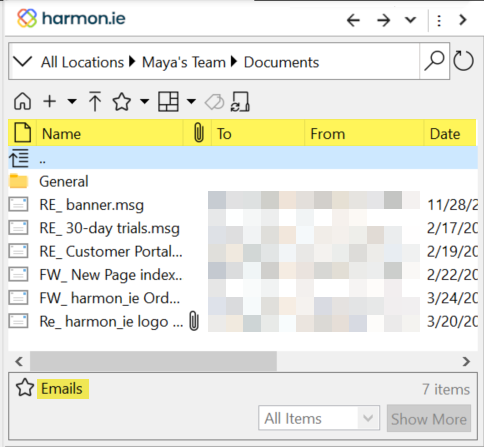
Lorsque des emails sont enregistrés pour la première fois dans un emplacement Teams, harmon.ie suggère de créer une vue Email dans cet emplacement. Si vous acceptez, les en-têtes d’email suivants seront désormais enregistrés dans les colonnes d’email correspondantes :
- Nom (nom du fichier email)
- HasAttachments (l’email contient-il des pièces jointes)
- À
- De
- Date
- OriginalSubject (objet original de l’email de la conversation)
- Objet
Une vue email est créée et peut être affichée dans SharePoint, Teams et harmon.ie.
Pour étendre ce mappage aux emplacements SharePoint ou le désactiver, définissez l’option Créer une vue email avec des colonnes de métadonnées.
- Cette fonctionnalité ne nécessite aucune intervention de l’administrateur.
- Pour plus d’informations, veuillez lire Comment enregistrer les en-têtes d’email dans les colonnes SharePoint et Teams à l’aide de harmon.ie Classic.
Configurer l’enregistrement personnalisé des en-têtes d’email dans les colonnes
Vous pouvez configurer harmon.ie pour enregistrer encore plus d’en-têtes d’email dans les emplacements SharePoint ou Teams. Pour activer ce mappage, la bibliothèque de documents SharePoint doit être configurée avec des colonnes spécifiques à l’email. Pour savoir comment procéder, consultez l’article de la base de connaissances Comment enregistrer les en-têtes d’email dans les colonnes SharePoint et Teams à l’aide de harmon.ie Classic.
Le mappage entre les en-têtes d’email et les champs SharePoint est configurable à partir du tableau de mappage dans les options harmon.ie.

